This guide installs Ollama on a 2020 gaming laptop running Windows 11 and gets a first local model answering questions, with a screenshot for every step. It also shows what actually happens on an older machine: the default “thinking” mode can take minutes per answer when the model runs on the CPU. Everything here was checked on November 23, 2026 with Ollama 0.40.17.
Check your laptop first
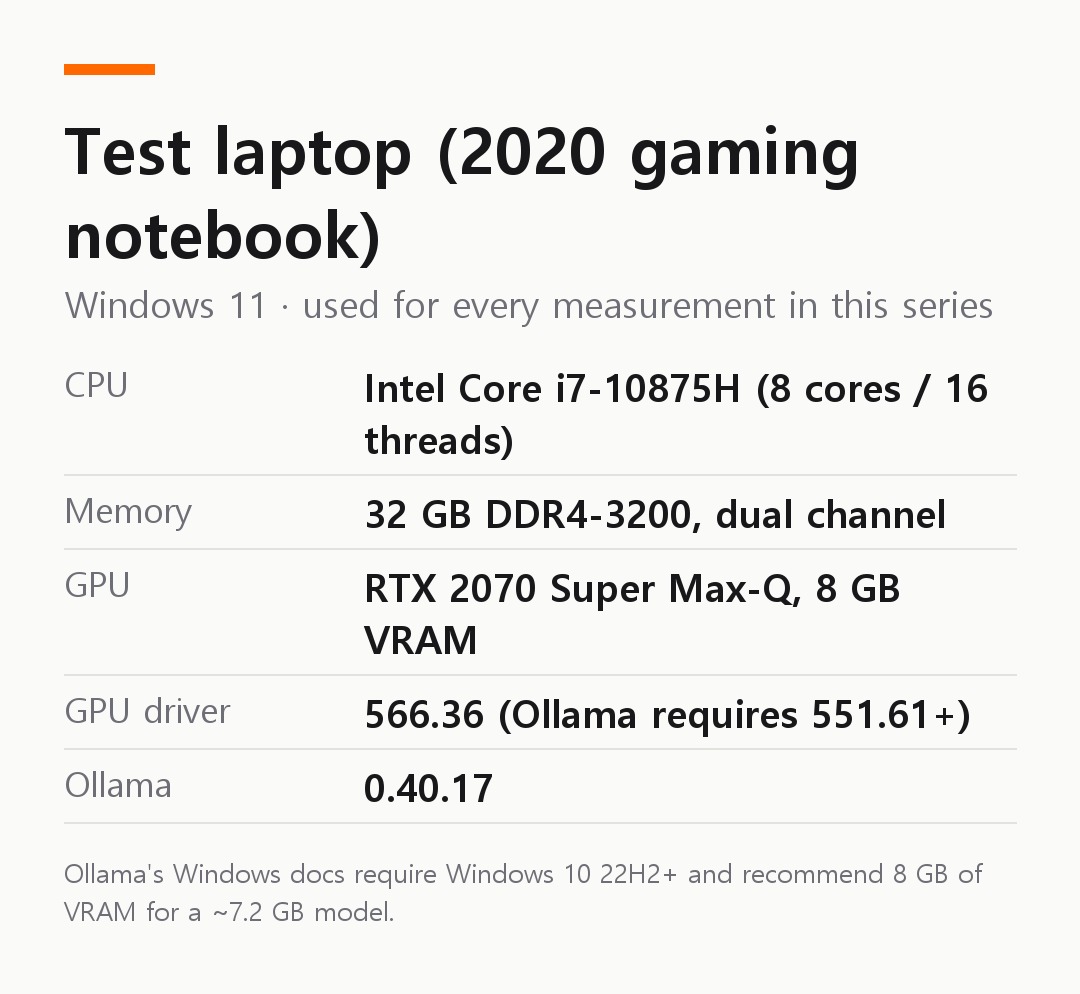
On Windows 11, open Settings → System → About to see your CPU, installed RAM and graphics card with its memory. In Task Manager (Ctrl+Shift+Esc) → Performance → GPU, check dedicated GPU memory on the discrete GPU; shared GPU memory is borrowed system RAM, not VRAM.
- Ollama’s Windows docs require Windows 10 22H2 or newer and, for NVIDIA cards, driver 551.61 or newer.
- The install itself needs at least 4 GB; models take several GB each.
- The quickstart recommends 8 GB of available VRAM for its ~7.2 GB example model; with less VRAM, Ollama falls back to system RAM and responses get slower.
- No administrator rights are needed.
Download Ollama from the official site
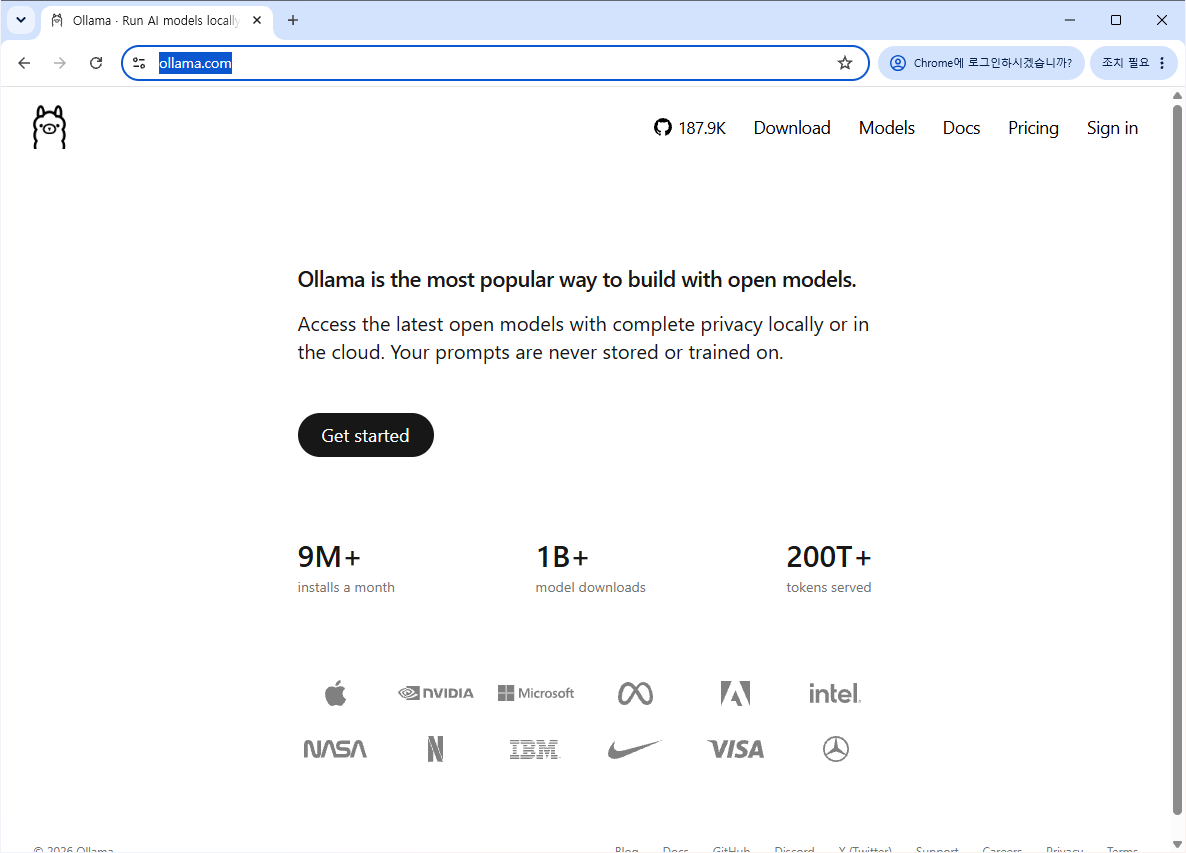
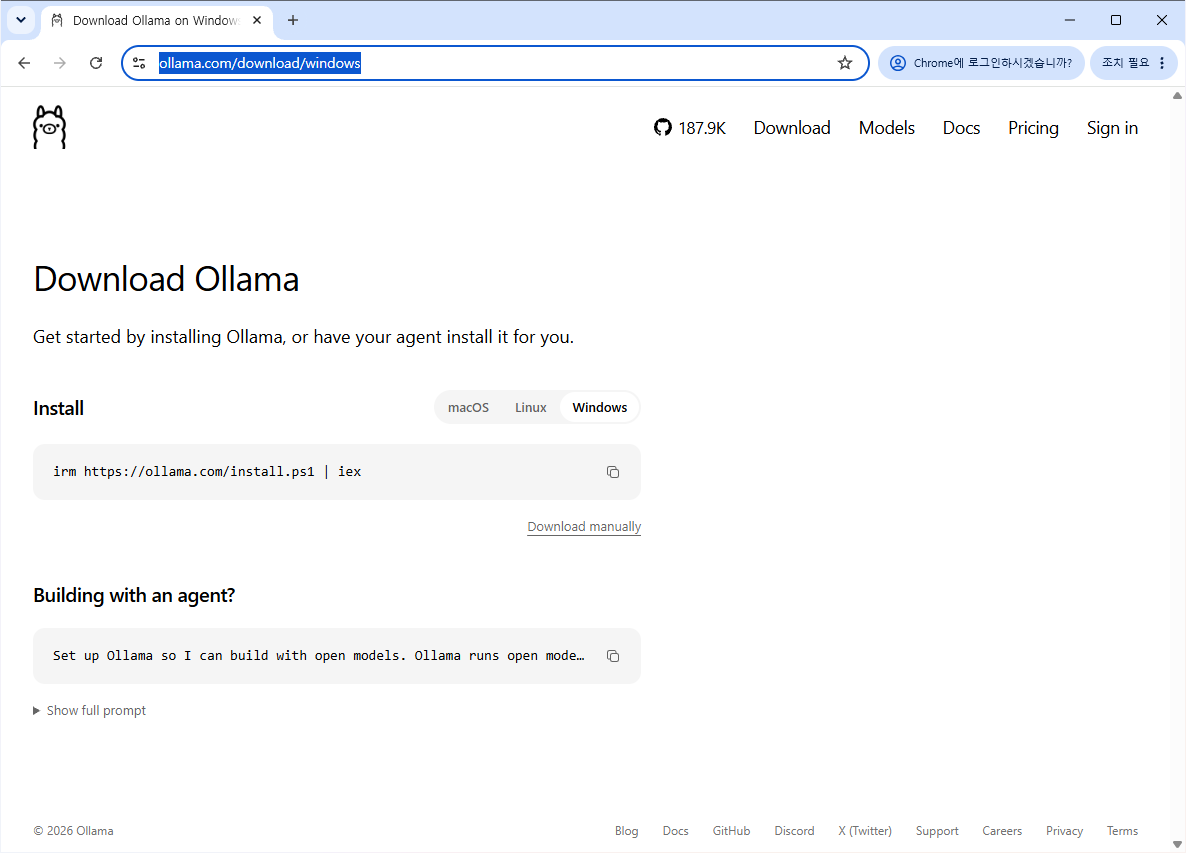
The “Download manually” link redirects to the latest GitHub release of OllamaSetup.exe (about 1.8 GB). The file downloaded this way had the same SHA-256 as the v0.40.17 GitHub release asset.

Install
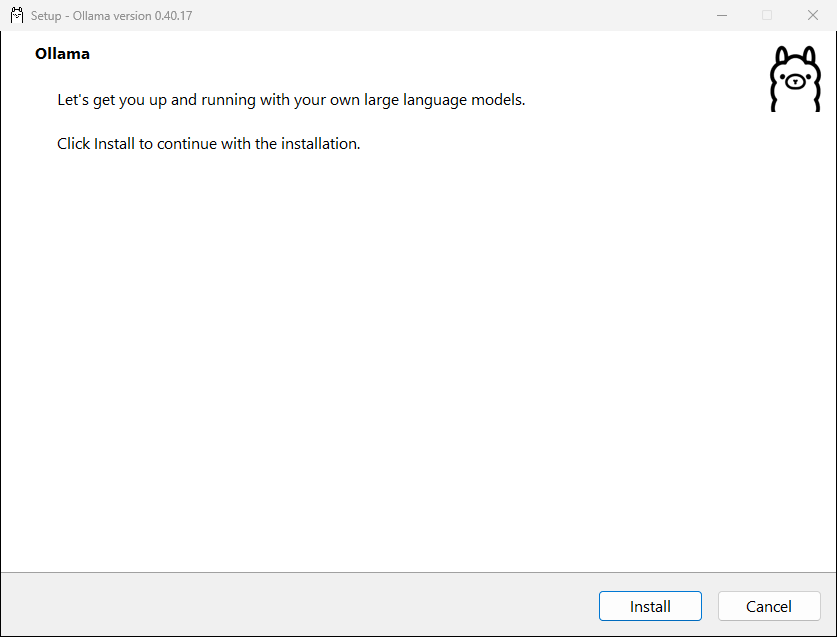
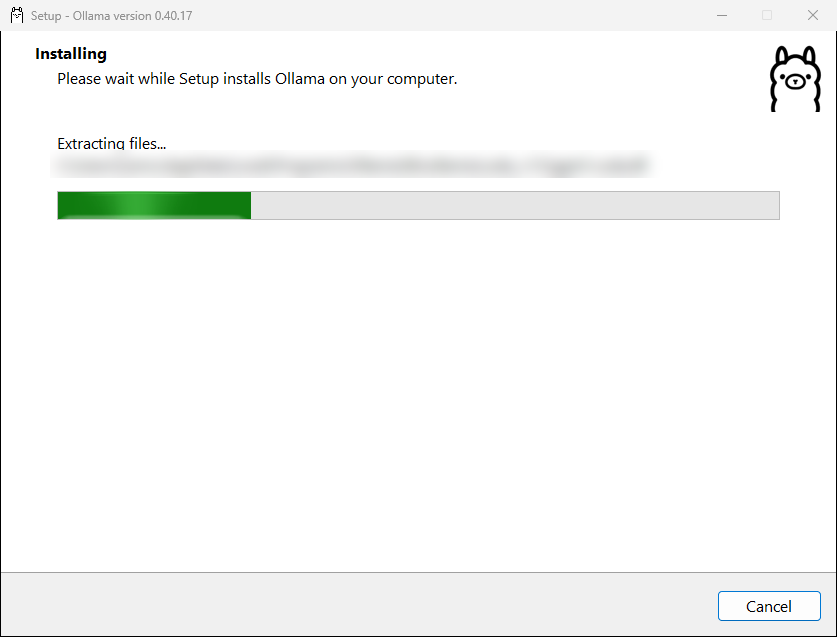
| Item | Per the official Windows docs |
|---|---|
| Program files | %LOCALAPPDATA%\Programs\Ollama |
| Models | the .ollama folder in your user profile (change with the OLLAMA_MODELS environment variable) |
| Custom install folder | run the installer with /DIR=”d:\some\location” |
| Network | the API listens on 127.0.0.1:11434 by default |
First launch of the app
The app opens to a welcome screen; click Continue. On the account screen, choose “No thanks, I’ll use Ollama locally” — an account is only needed for cloud models.

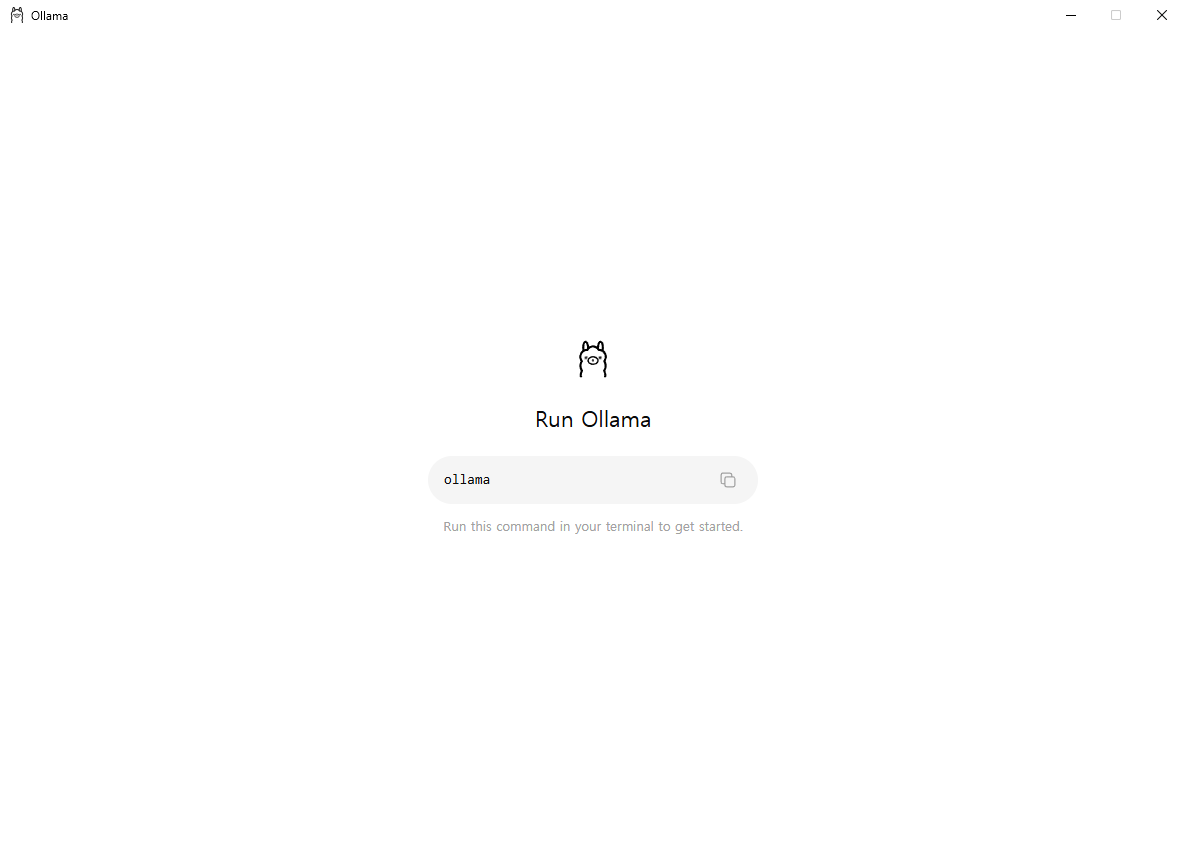
Download a model and chat in Command Prompt
Open a new Command Prompt (search “cmd” in the Start menu). A window opened before the install won’t find ollama yet, because the installer’s PATH change only applies to new windows.
The installer adds Ollama to your user PATH, so it doesn’t matter which folder the window opens in. There’s no need to cd into the Ollama install folder; just type the command.
ollama run qwen3.5:9b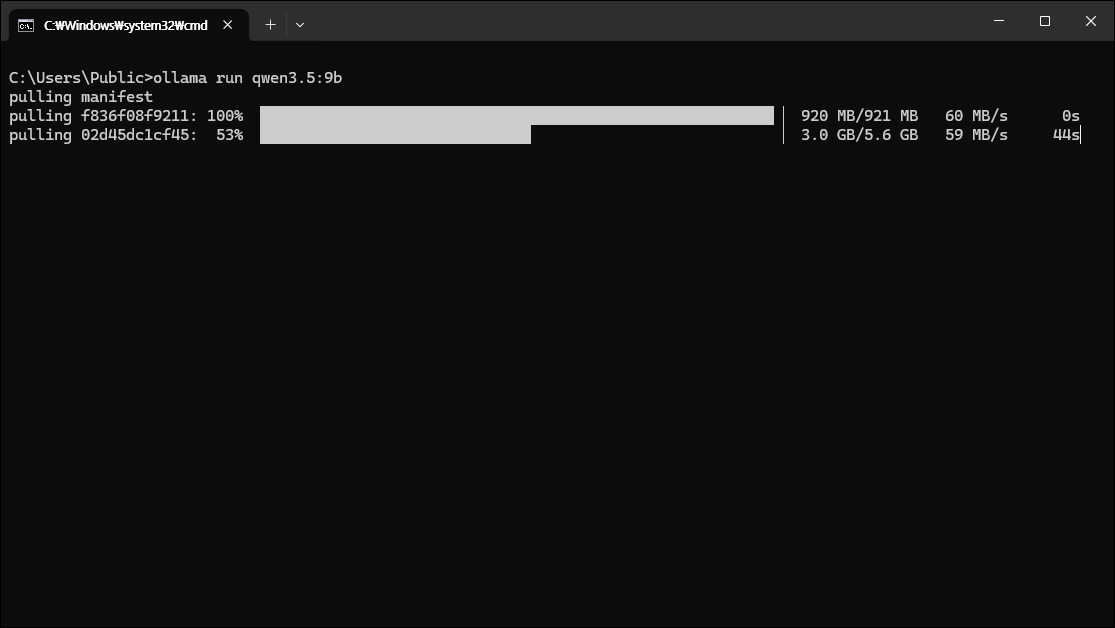
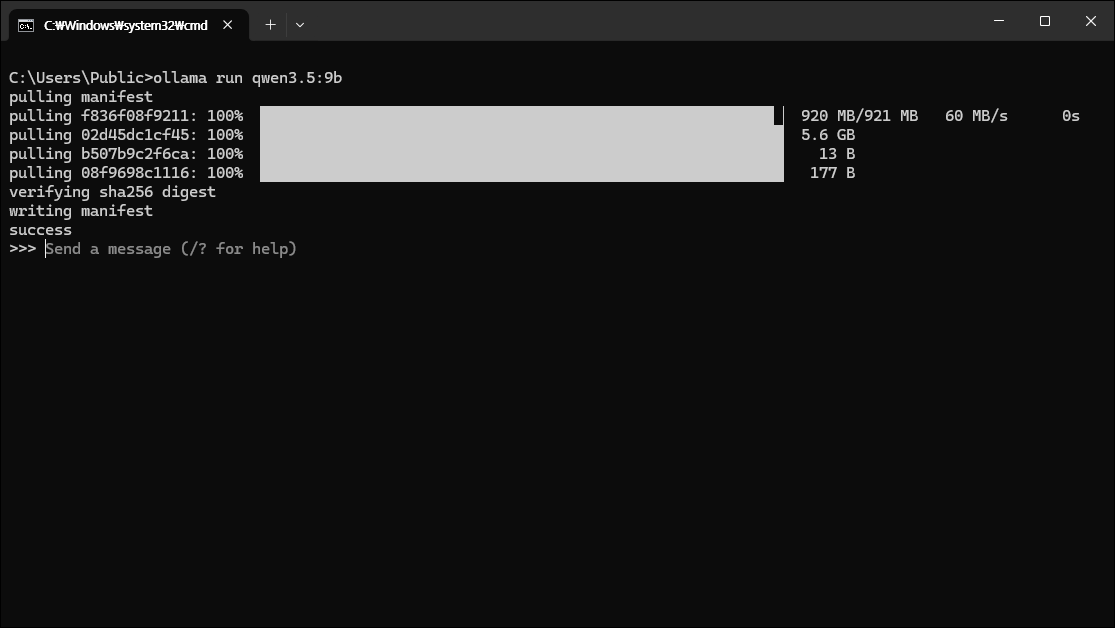
>>>, type a question. Type /bye to exit.Why it prints a wall of English first: thinking mode
Many current models reason before answering, and Ollama shows that reasoning under “Thinking…”. It isn’t an error. On this laptop, with the model running on the CPU, a three-line answer took 3 minutes 50 seconds with thinking on.
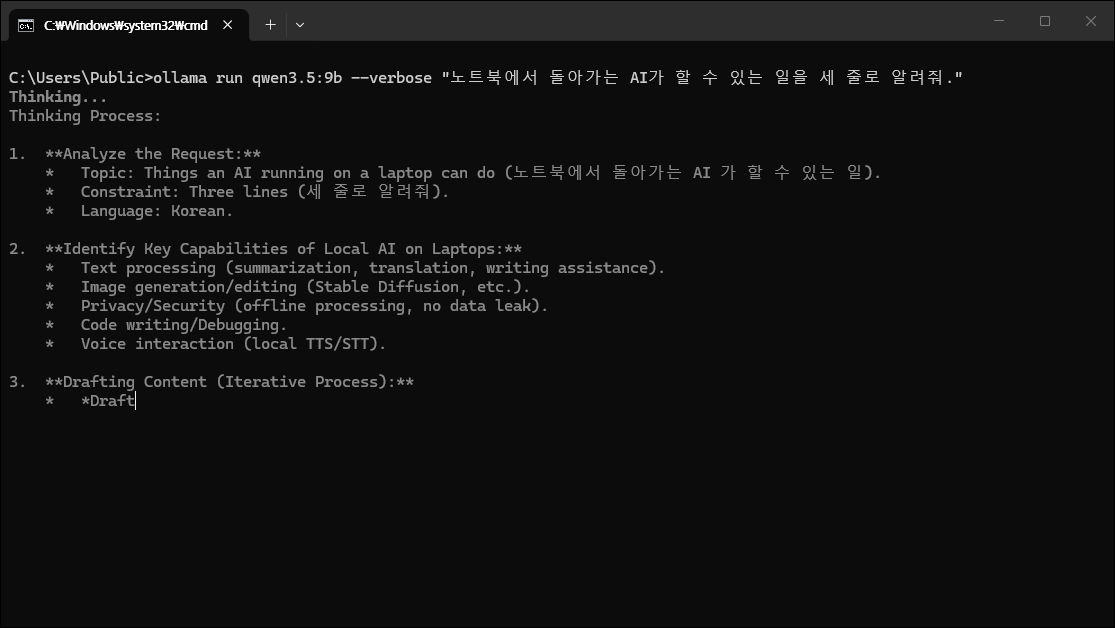
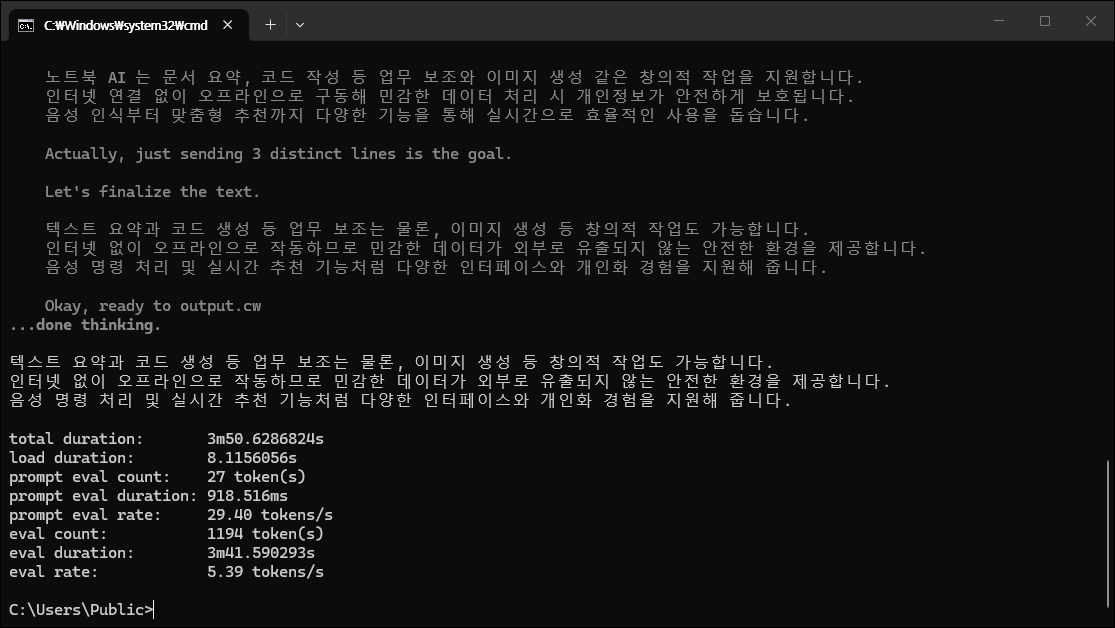
--verbose prints the timings.Add --think=false to skip it:
ollama run qwen3.5:9b --think=false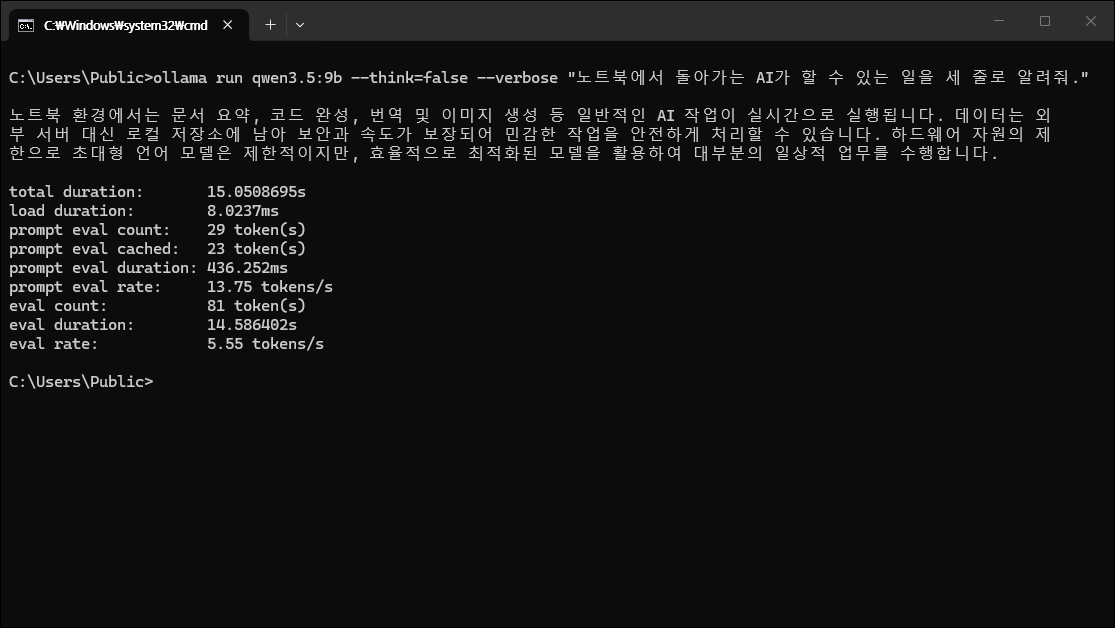
Generation speed was the same in both runs (about 5.4 tokens/s). With thinking on, the model generated 1,194 tokens; with it off, 81.
Thinking on vs. off across four models (CPU only)
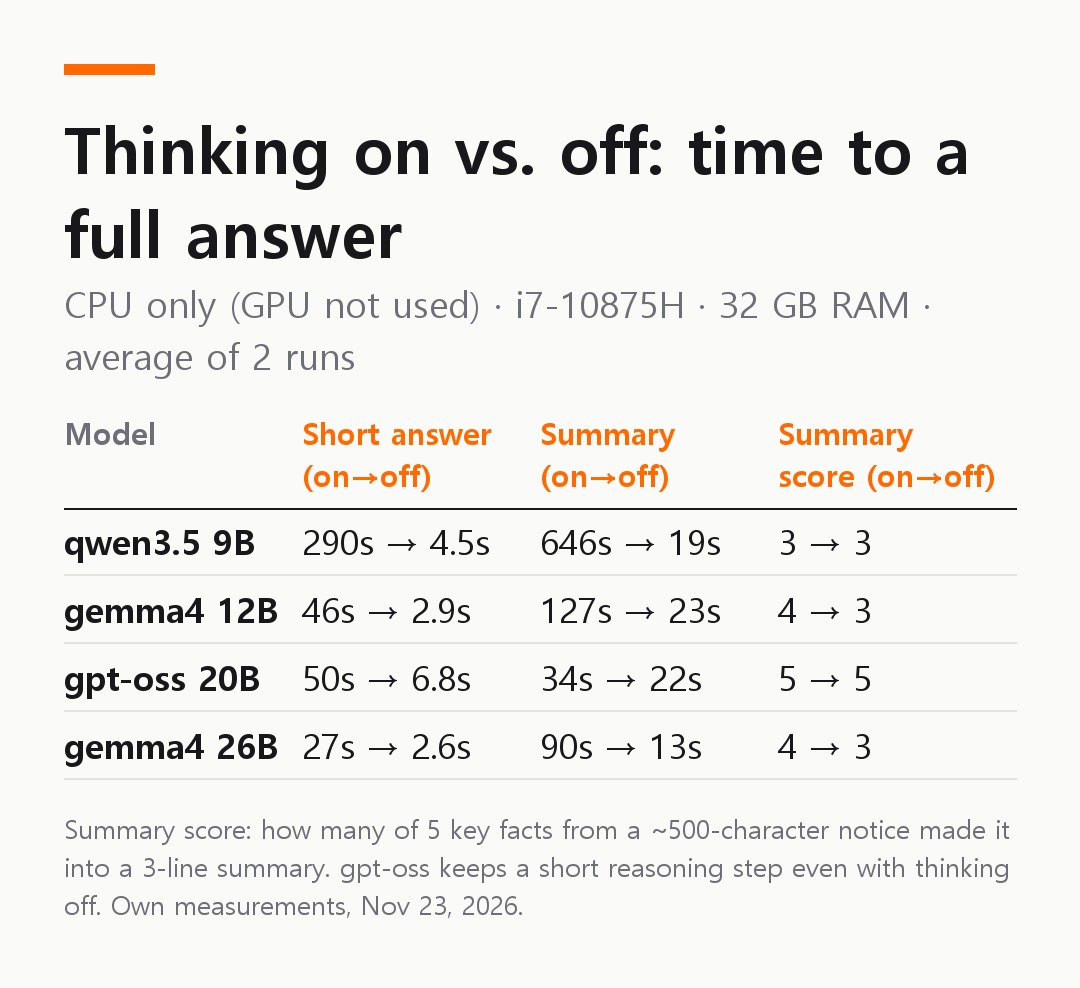
| Model | Short answer (on → off) | 3-line summary (on → off) | Summary score (on → off) |
|---|---|---|---|
| qwen3.5 9B | 290s → 4.5s | 646s → 19s | 3 → 3 |
| gemma4 12B | 46s → 2.9s | 127s → 23s | 4 → 3 |
| gpt-oss 20B | 50s → 6.8s | 34s → 22s | 5 → 5 |
| gemma4 26B | 27s → 2.6s | 90s → 13s | 4 → 3 |
- With thinking off, every model answered within 30 seconds.
- Both gemma4 models lost one point of summary accuracy when thinking was off.
- gpt-oss 20B kept a short reasoning step even with thinking off and scored 5/5 both ways.
Why this laptop ran on the CPU at all
Running ollama ps showed 100% CPU: Ollama never detected the RTX 2070. The cause turned out to be an outdated system Visual C++ runtime (MSVCP140.dll from 2018) that crashed Ollama’s GPU detection. The next post covers how to confirm this and fix it, and how much faster the same models run on the GPU afterwards.
Sources: Ollama Windows docs, Ollama quickstart, Ollama FAQ.
Leave a Reply