KakaoMap (카카오맵) can be switched to English from its settings, and unlike Naver Map it offers exactly two languages: Korean and English. We installed the Android app fresh on November 24, 2026, changed it to English without logging in, and repeated the same three checks we ran for our Naver Map English guide: a Seoul Station search, a transit route from Myeongdong, and a restaurant lookup. Below are the screens, the Korean button names, and where the two apps behaved differently.
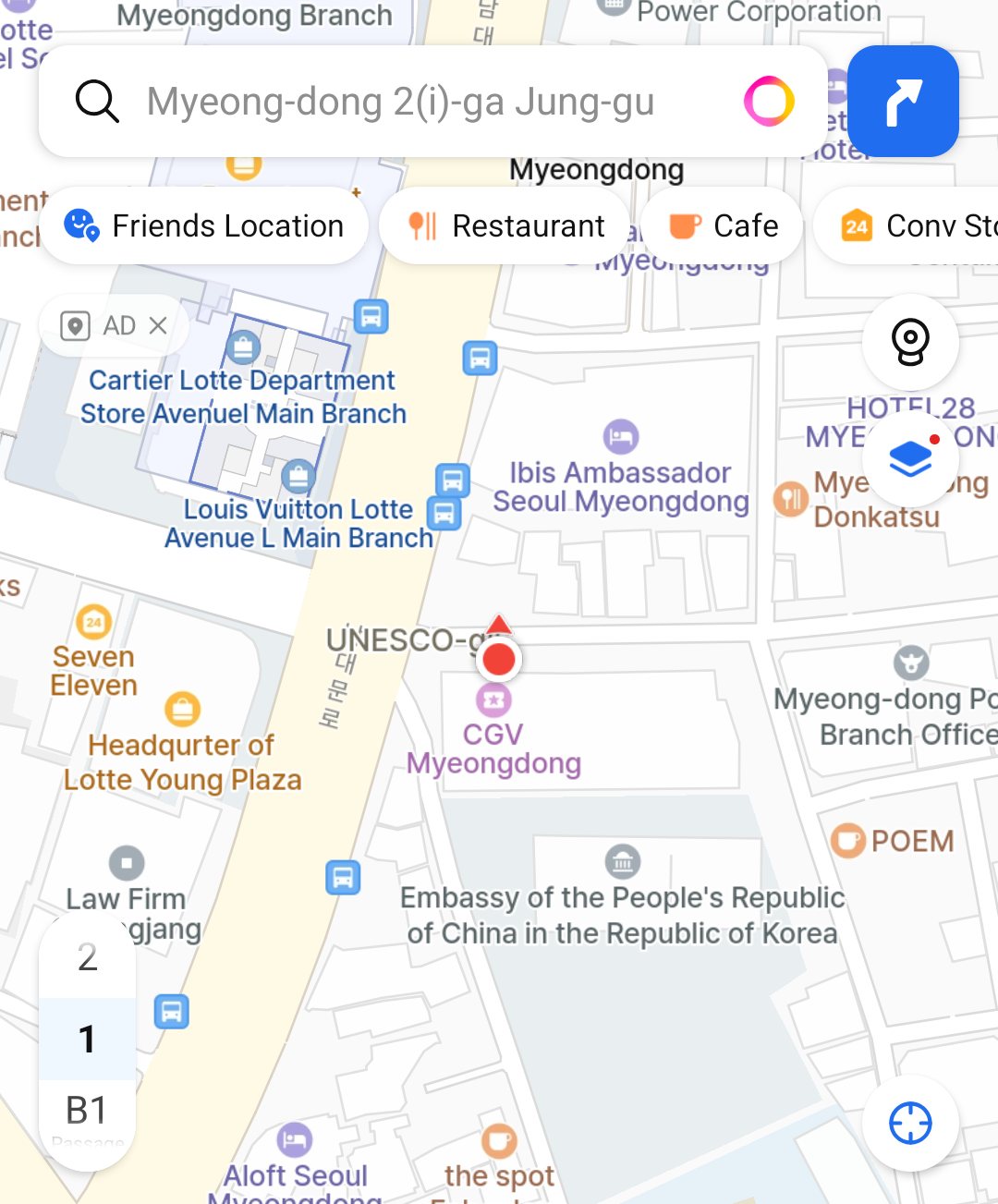
The short version: tap the ••• (more) tab at the bottom, tap the gear icon, choose 언어 (Language), pick English, then tap 재시작 (Restart). Searching, place pages and directions work without a Kakao account. Saving a place to Favorites asks you to log in.
How to change KakaoMap to English (Android)
We used KakaoMap 6.32.0 from Google Play. Unlike Naver Map, it did not show a terms screen on first launch in our test. It asked for notification and location permissions, and we allowed location only while the app is in use.
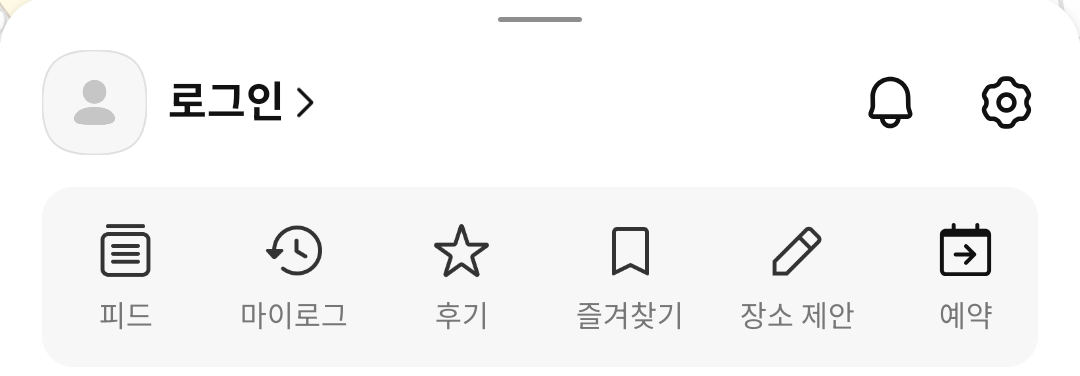
Step 1. Tap the ••• icon at the right end of the bottom bar. A panel opens with 로그인 (Log in) at the top and a row of shortcuts. Tap the gear icon at the top right of that panel.
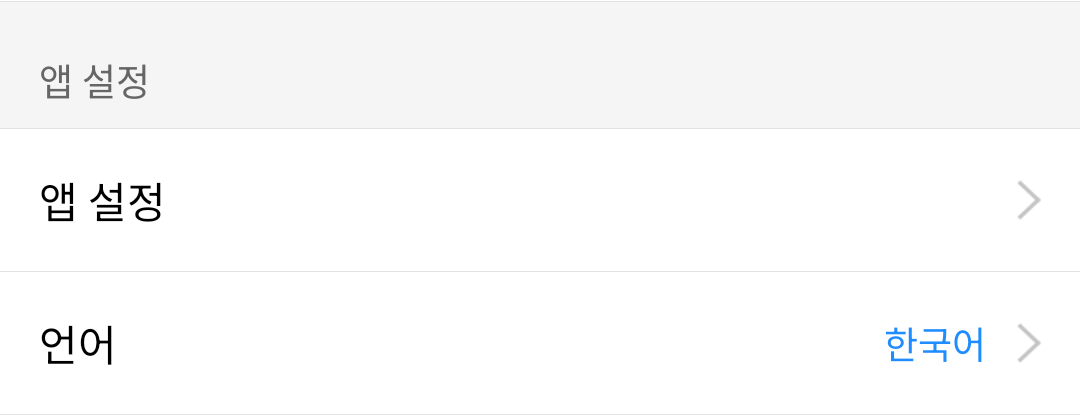
Step 2. The settings page is titled 설정. Under the 앱 설정 (App settings) heading, find the row 언어 (Language). On a new install it shows 한국어 (Korean) in blue on the right.
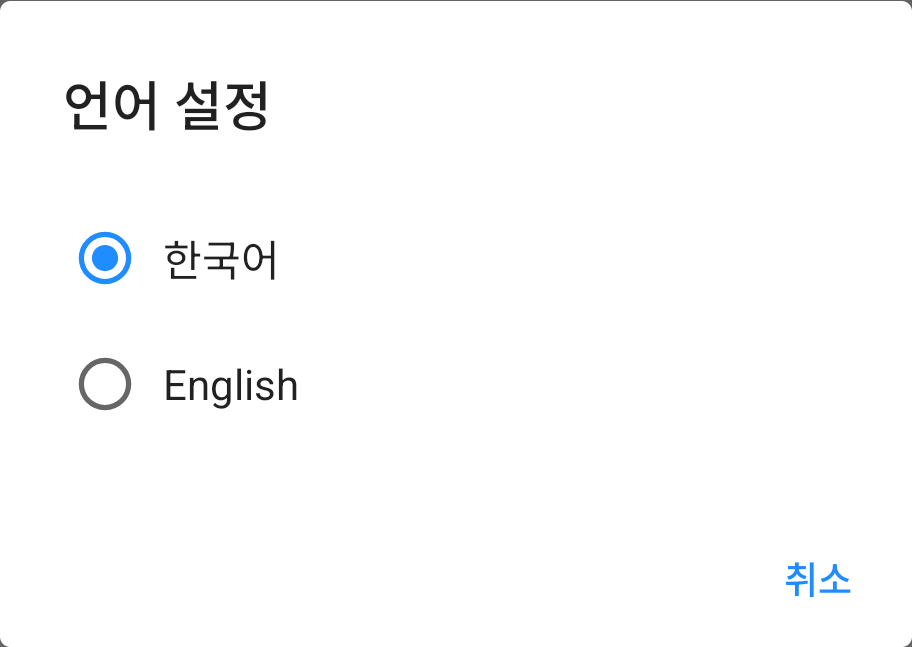
Step 3. The 언어 설정 (Language settings) pop-up lists only 한국어 and English. Tap English. There is no separate OK button; the next pop-up appears right away.
Step 4. The pop-up says 설정한 언어(en)를 적용하기 위해 앱을 다시 시작합니다, meaning “the app will restart to apply the selected language (en).” Tap 재시작 (Restart) on the right, not 취소 (Cancel). The app reopened in English within a few seconds.

After the restart, the home screen showed Friends Location, Restaurant, Cafe and Conv Store buttons, and the bottom panel read Login, HOME and WORK/SCHOOL. Map labels were in English only, for example “CGV Myeongdong” and “Ibis Ambassador Seoul Myeongdong.” Naver Map shows English and Korean together on its map, so this is the first visible difference between the two apps. Ad banners and the photo feed further down stayed in Korean.
Searching “Seoul Station” in English
Typing “Seoul Station” worked: KakaoMap found the KTX station, the Airport Railroad station, Line 1 and Line 4. The suggestion list itself, though, was in Korean: 서울역 KTX정차역 (Seoul Station, KTX stop), 서울역 공항철도 (Airport Railroad), 서울역 1호선 (Line 1), with Korean street addresses underneath. In the same test, Naver Map showed this list in English.
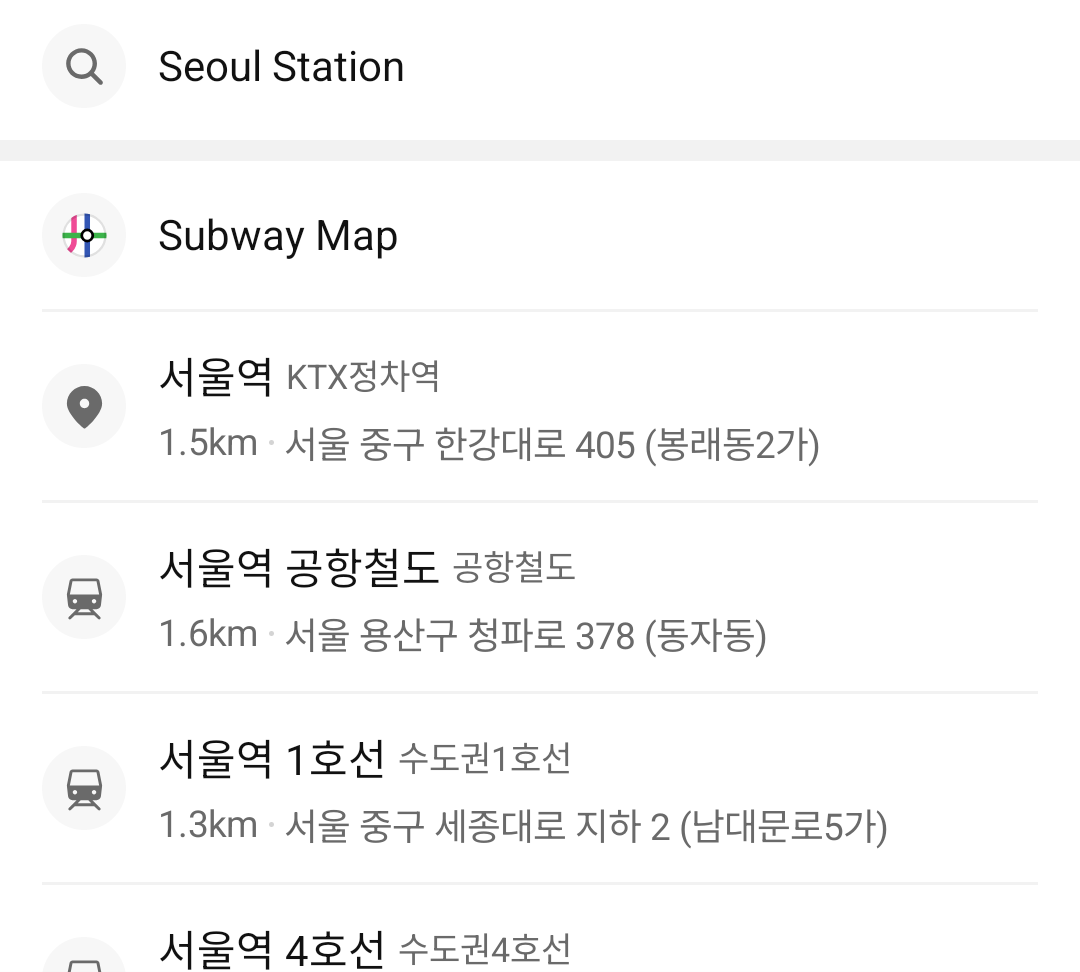
If you cannot read the list, look for these words: 서울역 is Seoul Station, KTX정차역 means a KTX stop, 공항철도 is the Airport Railroad, and 호선 means subway line (1호선 is Line 1). Opening the KTX entry switched back to English. The place card read “Seoul Station, KTX Station,” with the address 405 Hangang-daero, Jung-gu, Seoul, a rating, and colored tags for the train types that stop there: KTX, Mugunghwa (spelled “Mugungwha” in the app), ITX-Saemaul and ITX-Maum.

The indoor map of the station was labeled in English too, with shops such as Olive Young, Storyway and Tous Les Jours, plus floor buttons on the left. One small detail: the search bar at the top kept the Korean name 서울역 after we opened the place.
Transit directions from Myeongdong
From the same point in Myeongdong we used for Naver Map, we tapped To on the Seoul Station card. KakaoMap listed 15 transit options split into Bus, Subway and Bus+Subway tabs. The top one, labeled Fastest Arrival, took 15 minutes by bus with a fare range of ₩1,500 to ₩2,500 shown by the app. Bus stops carried English names and stop numbers, for example “Lotte Dept. Store 02140,” and each bus showed live status such as “Arriving” and how crowded it was (“Empty”).
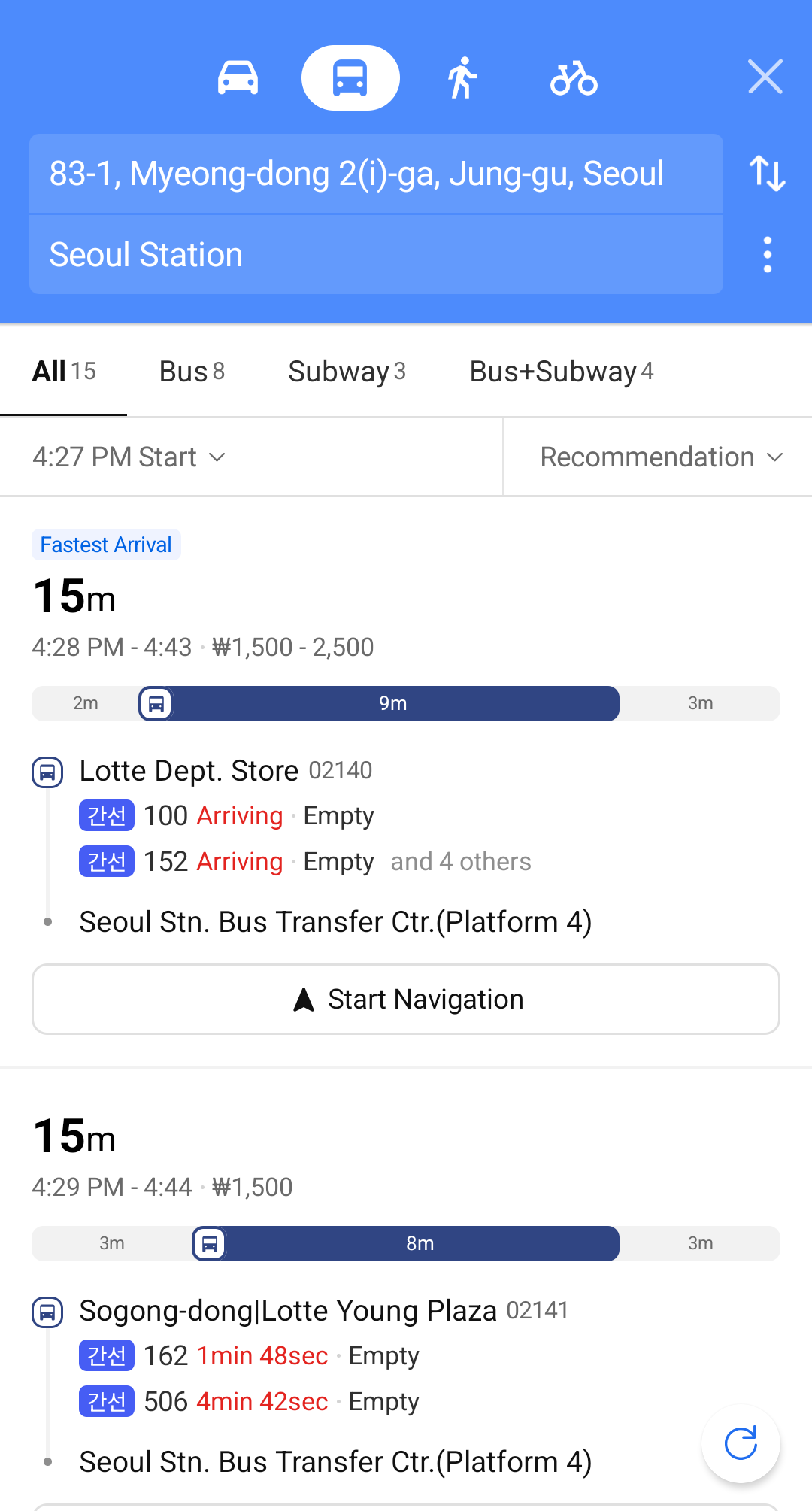
The blue label in front of each bus number stayed in Korean: 간선 (ganseon). It marks a blue trunk bus in Seoul, the long-distance city buses. You will also see 지선 (jiseon) for green branch buses on other routes. Read the number next to the label; that is the bus you board.
Restaurant search and reviews
Searching “Myeongdong Kyoja” in English returned one result, the noodle restaurant in Chungmuro 2-ga, with its category (Kalguksu), opening status, distance and address in English. Naver Map returned four entries with similar names for the same search, so KakaoMap’s list was shorter here. The keyword tags under the name stayed in Korean: 초복메뉴추천 (a seasonal menu pick), 혼밥 (good for eating alone) and 장애시설 (accessibility facilities).

Ratings are not comparable between the apps. On the same day, KakaoMap showed 2.6 from 364 ratings for this place, and Naver Map showed 4.41 from about 10,000 ratings. Each app collects its own reviews from its own users, and the number of ratings behind each score was very different.
What needs a Kakao account
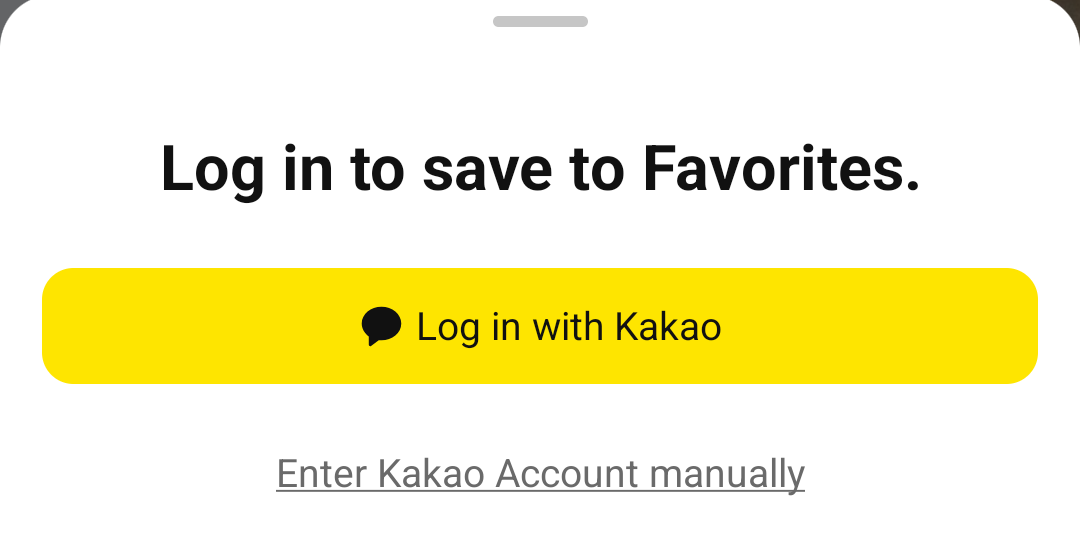
Everything above worked without logging in. Tapping the bookmark icon on a place brought up “Log in to save to Favorites,” with a yellow Log in with Kakao button and an option to enter a Kakao Account manually. If you only need a place for later, the share icon next to the bookmark lets you send the link to yourself.
KakaoMap vs Naver Map in English: what we saw
These are only the differences we observed in our own test on the same day, from the same location, with both apps set to English and not logged in.
| Item | KakaoMap 6.32.0 | Naver Map 6.12.2 |
|---|---|---|
| App languages | Korean, English | Korean, English, Simplified Chinese, Japanese |
| Map labels | English only | English with Korean below |
| “Seoul Station” result list | Shown in Korean | Shown in English |
| Transit route screen | English, bus type label in Korean | English, one banner in Korean |
| “Myeongdong Kyoja” results | 1 place | 4 places with similar names |
| Saving a place | Kakao login required | Naver login required |
Both apps are free to install and searched the same places in our test. When showing a destination to a taxi driver, Naver Map’s English mode still displays the Korean name under each label, while KakaoMap’s English mode does not. In KakaoMap, the Korean name appears in the search list, or you can switch the app back to Korean from the same Language setting.
iPhone and computer
We tested on Android only. Travel guides describe a similar route on iPhone through the menu, settings and Language, but we have not seen those screens ourselves (Trip.com KakaoMap guide). We did not test the desktop website for this post.
How we checked this
All screens come from our own test on November 24, 2026: KakaoMap 6.32.0 for Android, installed from Google Play, not logged in, with the phone’s location set to Myeongdong, Seoul. The Naver Map figures in the comparison come from our test of Naver Map 6.12.2 on the same phone and the same day. We wrote down only what appeared on those screens; other app versions may label things differently.
Leave a Reply