Naver Map (네이버 지도) has a built-in English mode, and switching to it takes about five taps. The catch is that the menu you need is labeled in Korean until you get there. We installed the app fresh on an Android phone on November 24, 2026, switched it to English without logging in, and then used it for a station search, a transit route, and a restaurant lookup in Myeongdong. This guide shows each screen, with the Korean button names next to the English ones so you can follow along even if your app still opens in Korean.
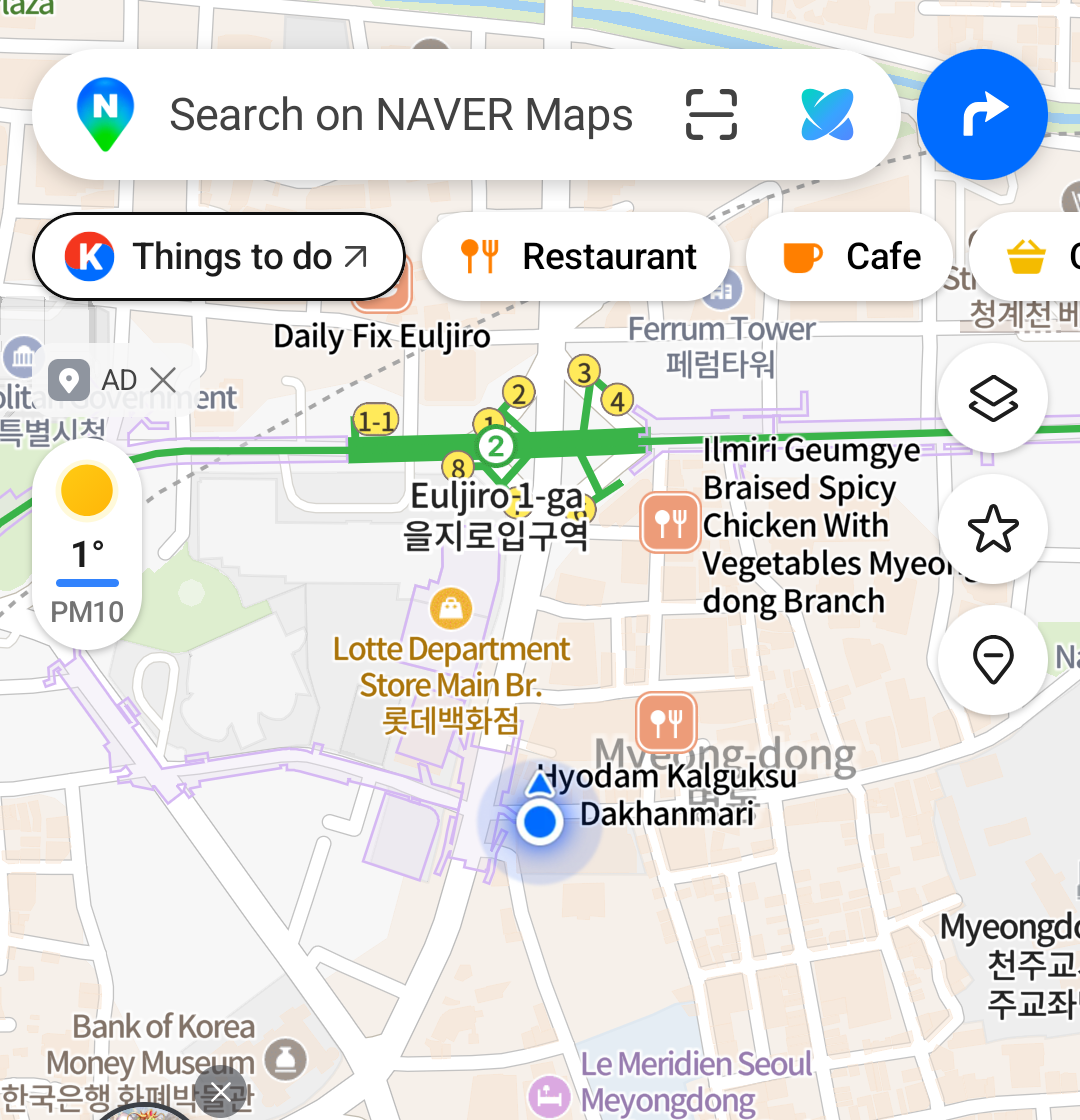
The short version: open the MY tab, tap the gear icon, choose 언어/Language, pick English, and confirm twice. The app restarts in English. No Naver account or Korean phone number is needed for searching, browsing places, or getting directions. Saving places does require a login.
Which languages Naver Map supports
The language menu in the version we tested (Android app 6.12.2) lists five options: 시스템 설정 언어 사용 (use the phone’s system language), 한국어 (Korean), English, 简体中文 (Simplified Chinese) and 日本語 (Japanese). NAVER describes the app as supporting four languages: Korean, English, Chinese and Japanese (NAVER press release, December 30, 2024).
By default the app follows your phone’s language. If your phone is already set to English, Naver Map may open in English on its own. On a phone set to Korean, or if the app keeps showing Korean, set the language inside the app as shown below.
How to change Naver Map to English (Android)
On first launch, the app asks you to accept its service terms. The required item is labeled (필수) 네이버지도 서비스 이용약관 (Naver Map terms of service). Tick it and tap 동의 (Agree). You can skip the optional “log in and agree” link at the bottom. After that the app asks for notification and location permissions. We allowed location only while the app is in use, which is enough for directions from where you stand.
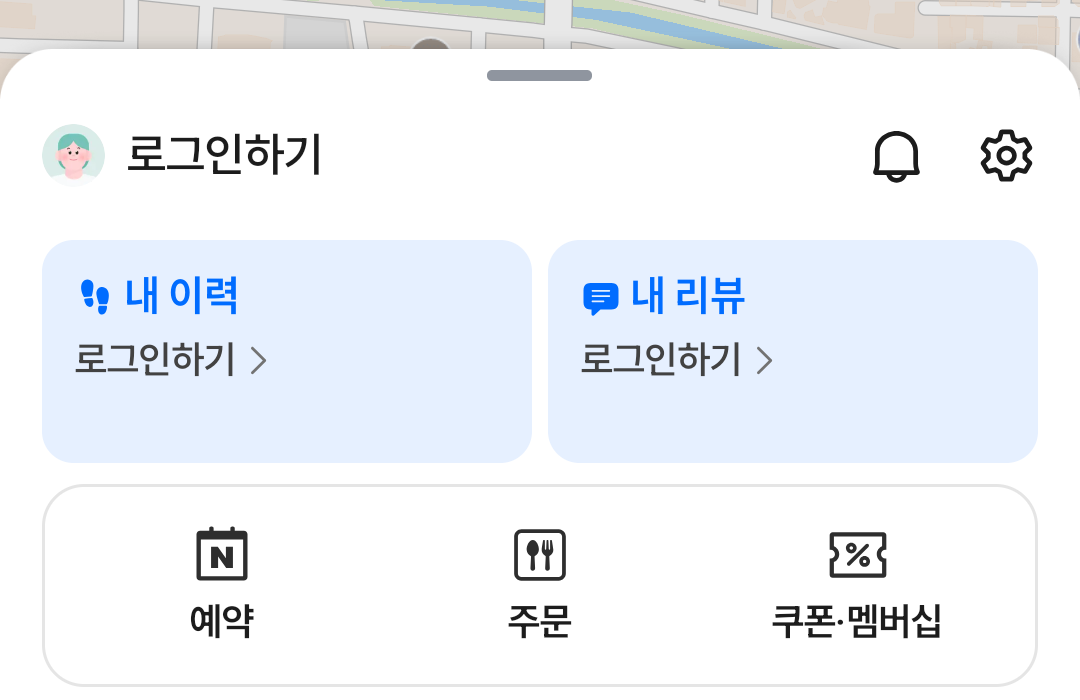
Step 1. Tap MY in the bottom bar (far right). In the current app layout, MY moved to the bottom tab bar, so older guides that mention a side menu are out of date. At the top of the MY screen, tap the gear icon (설정, Settings).
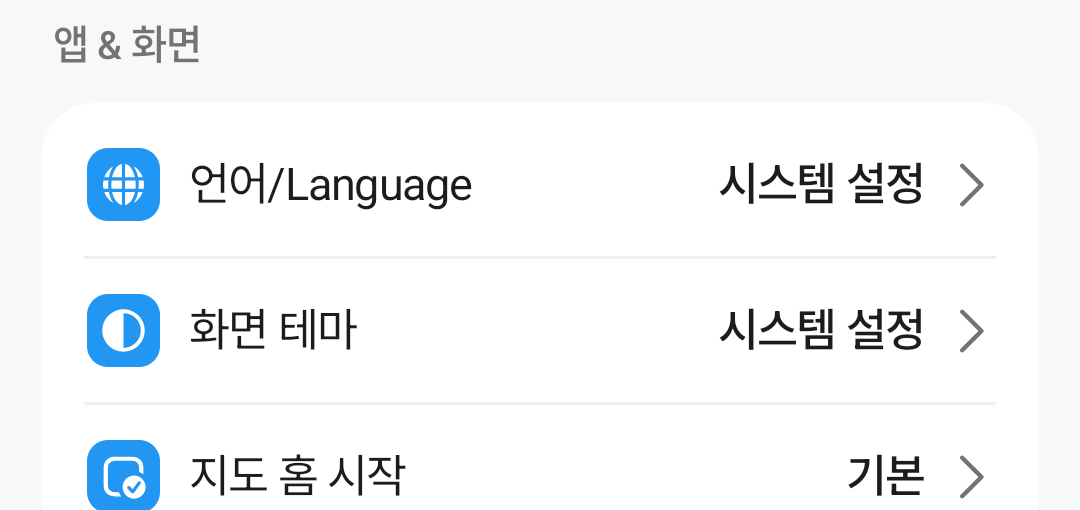
Step 2. Scroll down to the section called 앱 & 화면 (App & display). The row you want is 언어/Language, which is the only setting with English in its name. On a new install it shows 시스템 설정 (system setting) on the right.
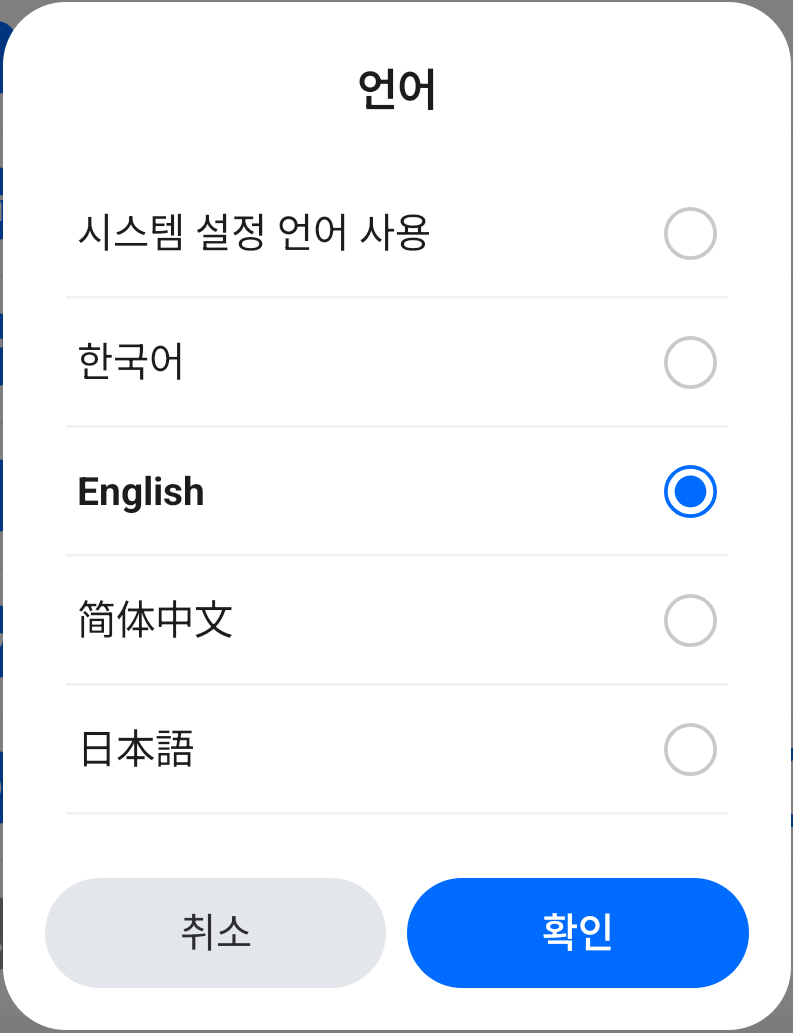
Step 3. In the 언어 (Language) pop-up, select English and tap the blue 확인 (OK) button. The grey button next to it, 취소, means Cancel.
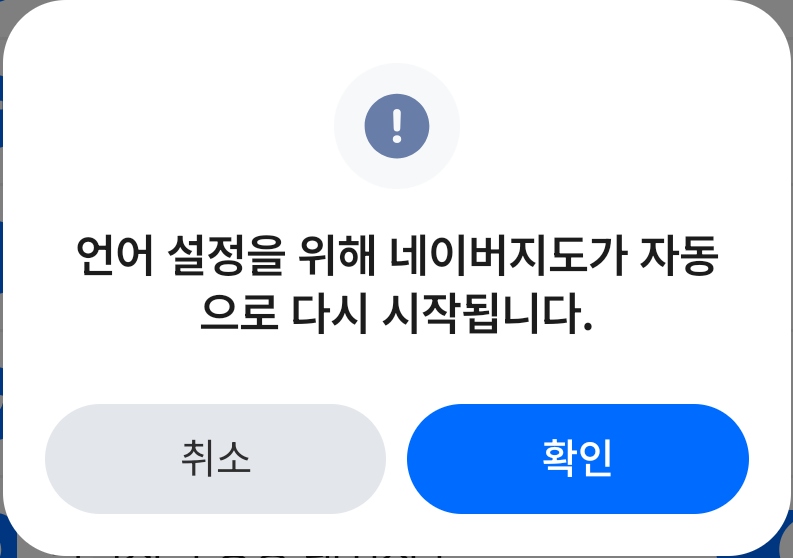
Step 4. A second pop-up says 언어 설정을 위해 네이버지도가 자동으로 다시 시작됩니다, which means “Naver Map will restart automatically to apply the language setting.” Tap 확인 (OK) again. In our test the app closed and reopened in English within a few seconds.
After the restart, the search bar reads “Search on NAVER Maps,” and the bottom tabs become Discover, Booking, Go, Bookmark and MY. The app also showed a promotional pop-up for foreign visitors the first time it opened in English. Tap Close to dismiss it.
What about iPhone?
We ran this test on Android only, so we have no iPhone screenshots. NAVER’s own App Store listing says the app can be switched from Korean to English through the settings icon and the language option (NAVER Maps on the App Store). Travel guides describe the same start as on Android (MY, then the gear icon, then Language), with the choice made on the iPhone Settings page for NAVER Map under Preferred Language. If English is missing there, add English in your iPhone’s general language settings first (Wise guide, Trip.com guide). Button names on iPhone may differ slightly from the Android screens above.
Searching in English: what worked in our test
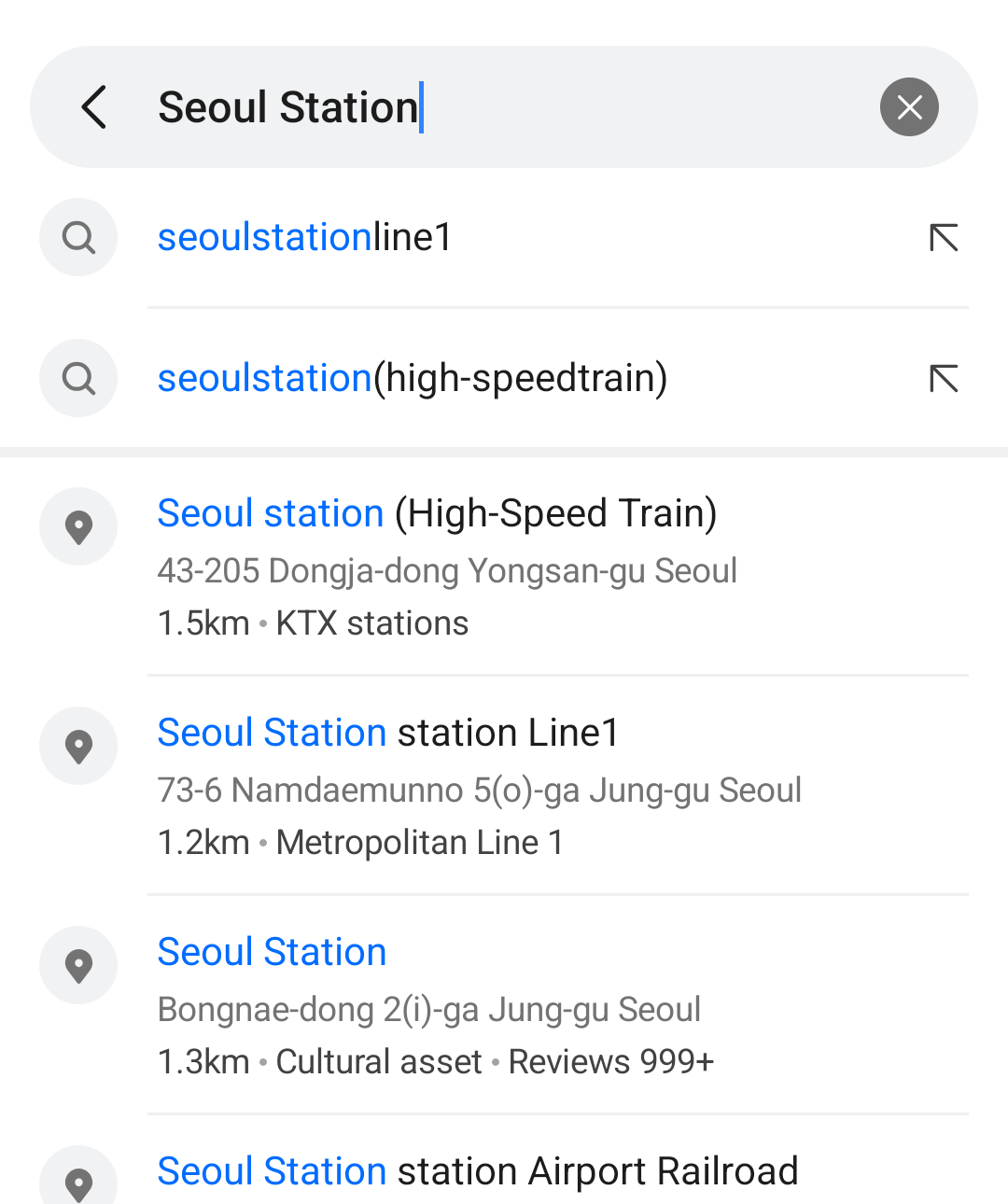
With the app in English, typing “Seoul Station” brought up the right places at the top: the KTX high-speed train station, the Line 1 subway station, the Airport Railroad station, and the old station building, which is listed separately as a cultural site. These are four different pins, and the old building is not where you board trains. If you are catching a KTX, pick the entry marked “High-Speed Train” and “KTX stations.”
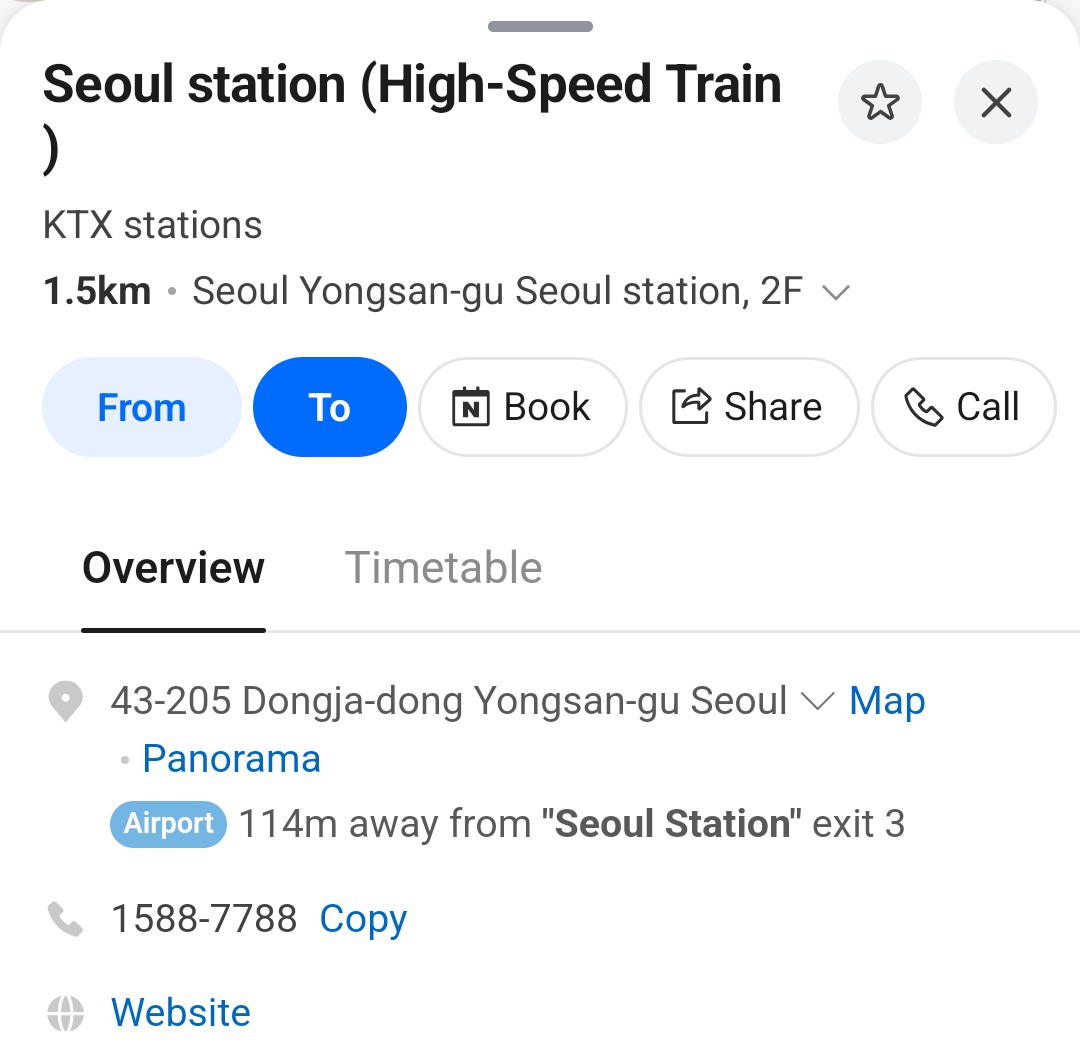
The station page itself was fully in English: the category (KTX stations), the floor (2F), the address, and a note that the Airport Railroad’s Seoul Station exit 3 is 114 m away. The From, To, Book, Share and Call buttons sit right under the name.
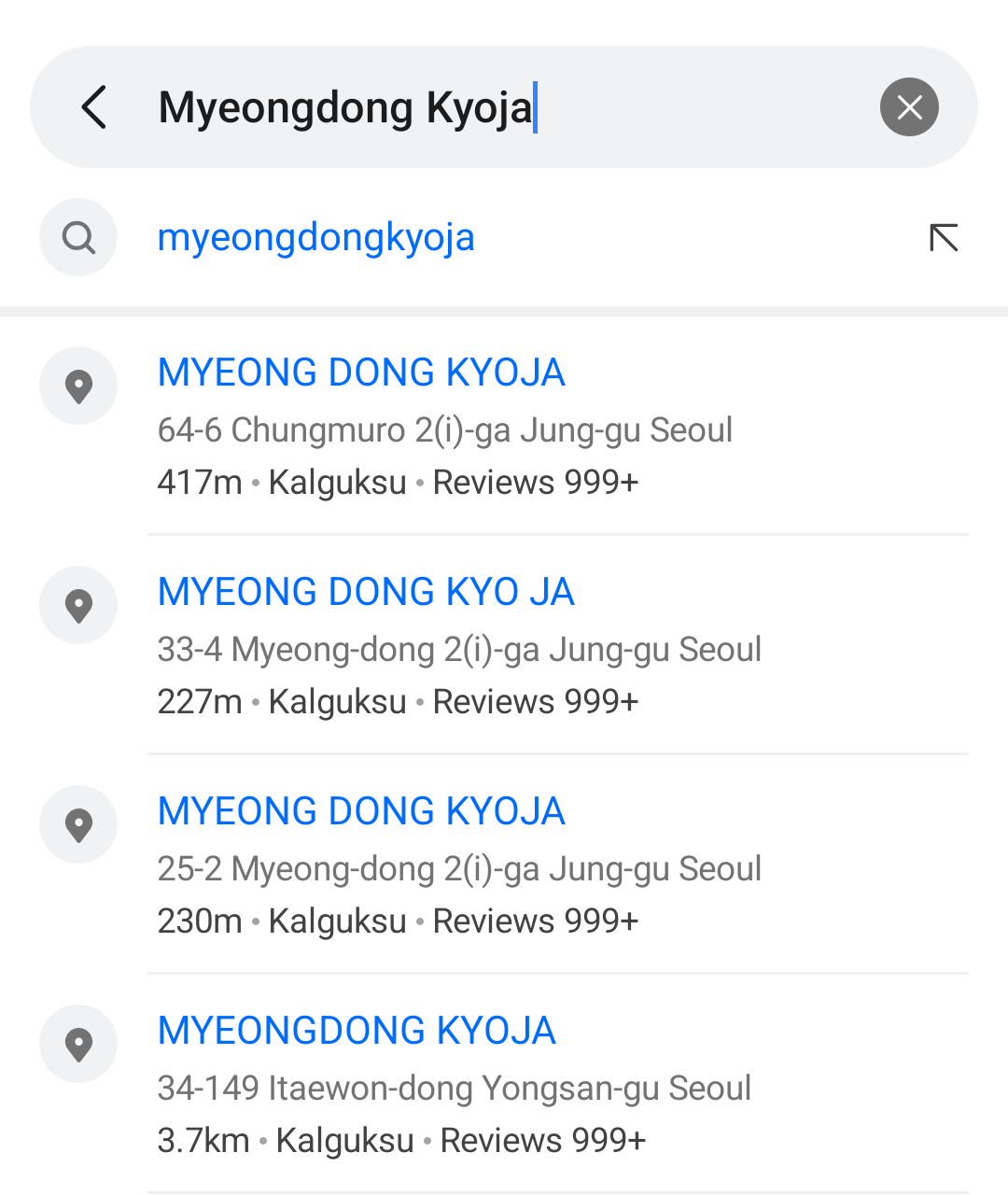
Restaurant names searched in English also worked when the place is well known. “Myeongdong Kyoja” returned four entries with almost the same name, three of them within a few hundred meters in Myeongdong and one in Itaewon. Popular restaurants often have several branches, so check the street address and the distance under each result before you tap To.
Small shops and cafes are often registered under a Korean name only, so an English search may come back empty. When that happens, copy the Korean name or the Korean road address (from Instagram, a hotel email, or a sign) and paste it into the search bar. Naver Map searches Korean text even when the app is in English.
Transit directions in English
We asked for directions from a street in Myeongdong to Seoul Station’s KTX entrance. The transit tab showed English route labels: Best, Short transfer, bus numbers (162 and 506), live arrival times such as “Arriving soon, 1 stop,” crowding tags (Good, Med), the stop to get off at, and the fare the app calculated for that trip. Tabs at the top switch between bus, subway, car, walking and bike.
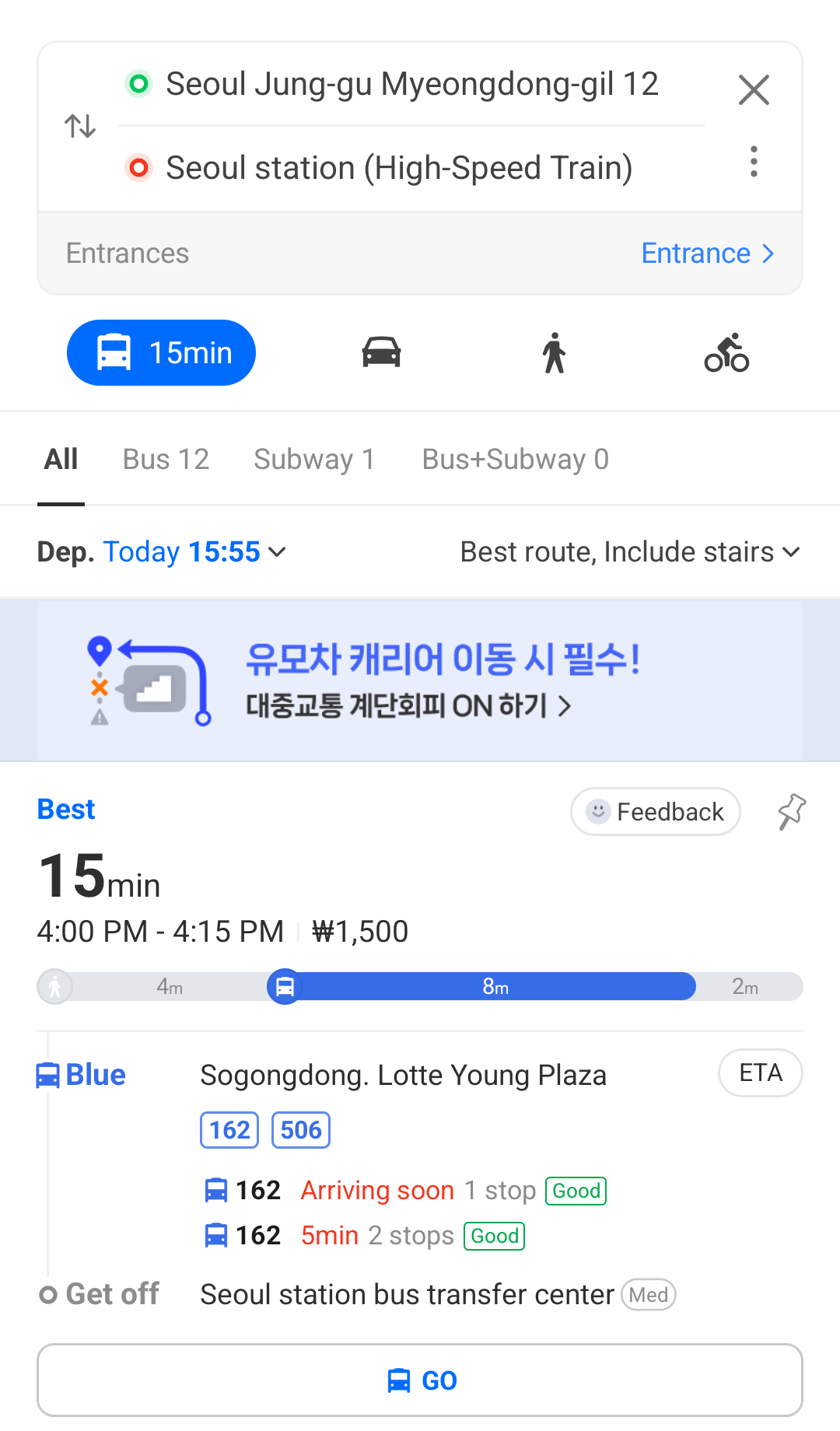
Notice the banner in the middle of that screen. It stayed in Korean: it promotes a setting to avoid stairs on transit routes (계단회피, stair avoidance), useful with a stroller or a suitcase. Banners, ads and event cards are often left untranslated, so a Korean block in the middle of an English screen is normal.
Reviews, ratings and what stays in Korean
On the restaurant page, the category, opening status, last order time and rating were in English. The review summary was translated too. Korean visitors pick keywords when they review, and the app showed them as “good food,” “large portion,” “good to eat alone” and so on, with the number of people who chose each one. NAVER says it uses Papago machine translation for reviews and place filters in English, Chinese and Japanese (NAVER press release, April 14, 2025).
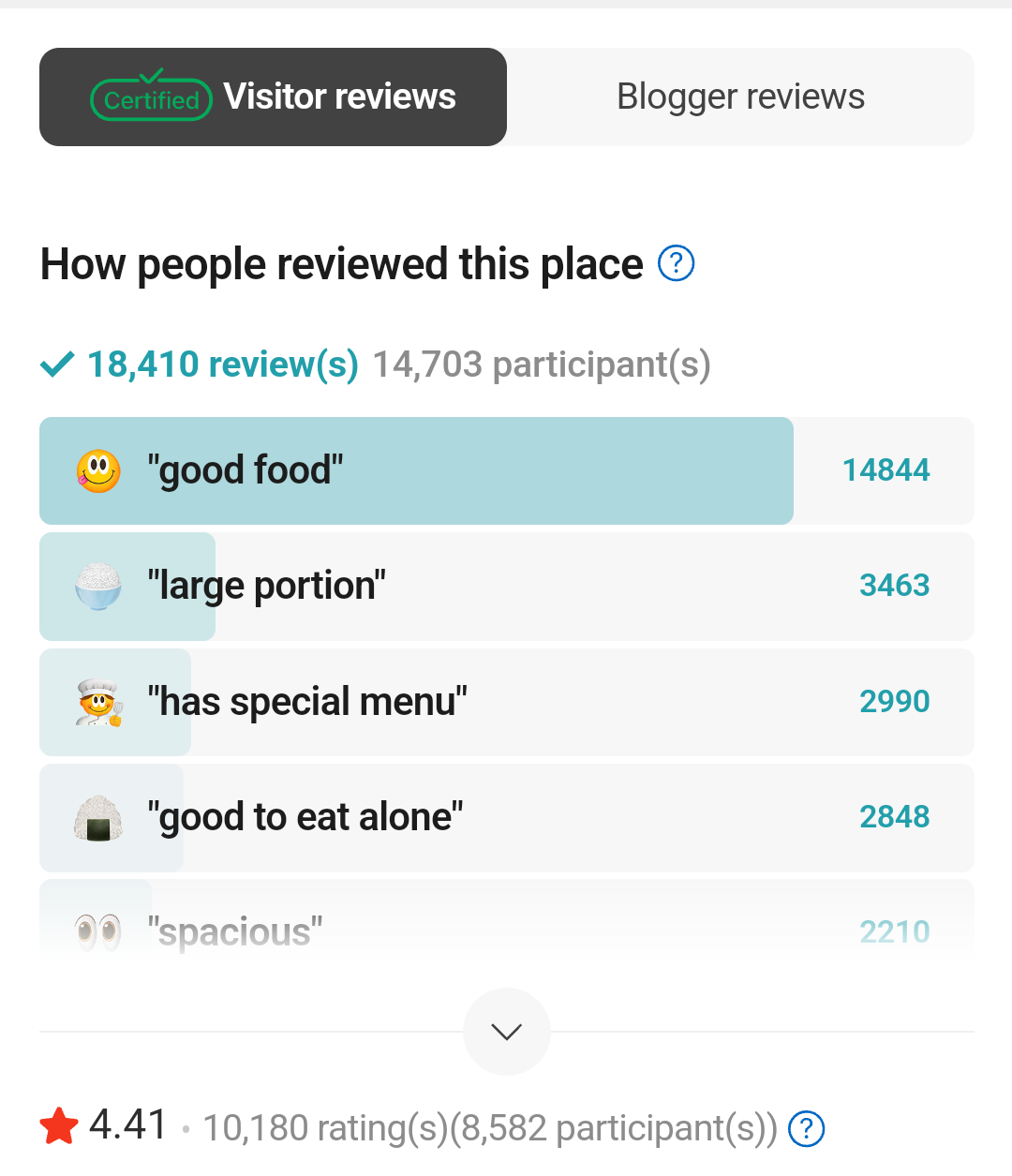
Some things stayed in Korean in our test. Shop signs and menus in visitor photos are pictures, so the app does not translate them. Hashtag-style highlights on the home feed were in Korean. Map labels show both languages, for example “Euljiro 1-ga” with 을지로입구역 underneath. That dual labeling is useful in a taxi: show the driver the Korean name, not just the English one.
What works without logging in
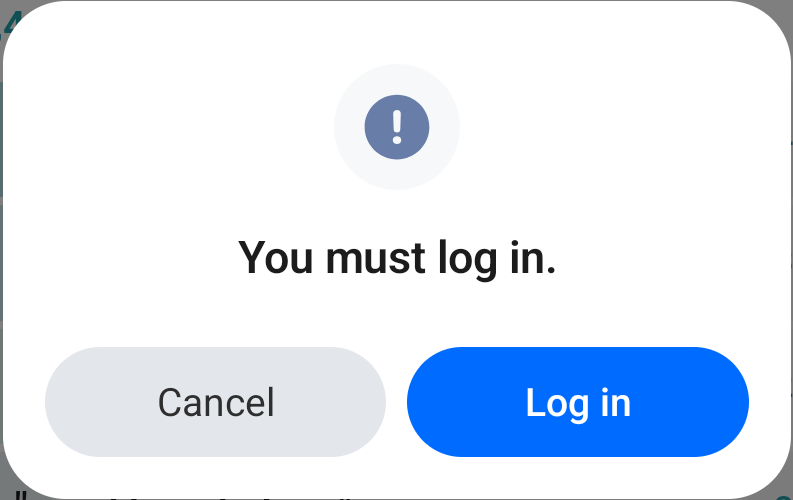
Everything above was done without a Naver account: language change, search, place pages, reviews and transit directions. Tapping the star to bookmark a place brought up “You must log in.” If you do not want an account, use Share on the place page to send yourself the link, or take a screenshot.
Bookings, orders and payments are a different story because they need identity verification. The Korea Times reported in June 2026 that Naver added passport-based verification so visitors without a Korean phone number can use reservations, orders and payments (Korea Times, June 9, 2026). We did not test booking or payment for this post.
Naver Map on a computer (map.naver.com)
The desktop site is useful for planning before the trip, but it has no language switch. We opened map.naver.com in Chrome with the browser language set to English. The main menu (지도 홈 Map home, 길찾기 Directions, 저장 Saved, 더보기 More) stayed in Korean. Some content switched to English, such as nearby place names, addresses, weather and travel promotions. The search result list stayed in Korean.
Searching “Seoul Station” on the desktop site put the KTX station first, but the next results were unrelated businesses with “station” in their names. Searching 서울역 in Korean listed the KTX station and every subway line at Seoul Station (Line 1, Line 4, Airport Railroad, Gyeongui-Jungang and GTX-A). On a computer, pasting the Korean name gave the cleaner list in our test.
Quick fixes for common problems
- The app is still in Korean after the change: open MY, then the gear icon, and check that 언어/Language shows English, not 시스템 설정.
- Your keyboard types Korean letters into the search bar: tap the globe key on the keyboard to switch it to English.
- A place does not show up in English: paste its Korean name or Korean road address instead.
- Several results share the same name: compare the address line and distance before you start directions.
How we checked this
Every screen in this post comes from our own test: Naver Map 6.12.2 for Android, newly installed from Google Play, not logged in, with the phone’s location set to Myeongdong, Seoul, on November 24, 2026. The desktop checks used Chrome with an English browser language on the same day. We only report what we saw on those screens and in NAVER’s own announcements. Menus, labels and promotions may look different in other app versions.
Leave a Reply