Gemini Notebook (the tool formerly called NotebookLM) can take a single photo of a machine, identify it, and pull its official manual into the notebook as a source. In our test on November 24, 2026, using the Gemini app on Android, that only worked when the request started with @Gemini Notebook. This post walks through the test with a pottery kiln controller and checks Gemini’s setup answer against the real manual.
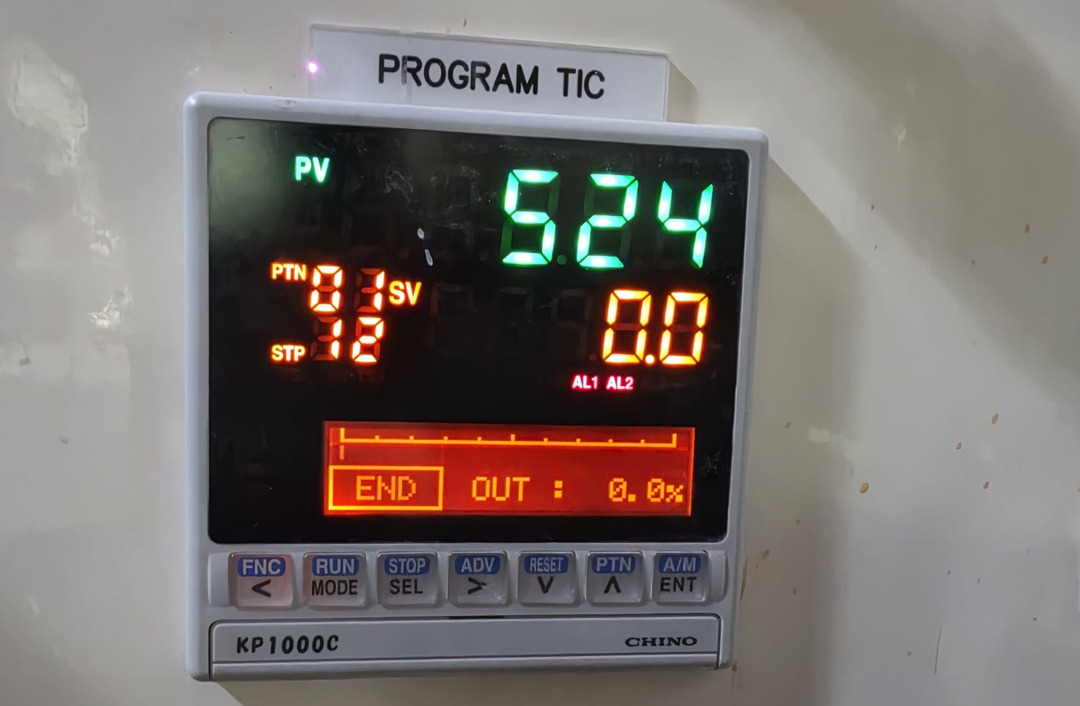
It started at a friend’s pottery studio
A friend who runs a pottery studio was programming the kiln controller by paging through the printed manual. The controller has seven keys labeled only with abbreviations like FNC, SEL and ADV, so it is hard to follow without the book. We took a photo of it with the friend’s phone and asked Gemini Notebook, in Korean, to “find the manual, add it to the sources, and tell me how to use it.” It walked through the model and setup on the spot. Later we repeated the test with the same photo and compared the answer with the official manual.
What Gemini Notebook is
Gemini Notebook is a workspace inside Gemini that answers from the sources you add: PDFs, photos, web links and more. Google renamed NotebookLM to Gemini Notebook on July 16, 2026 (Google Korea blog). In the Gemini app, open the side menu and choose Notebooks, then New notebook.
A plain request was refused
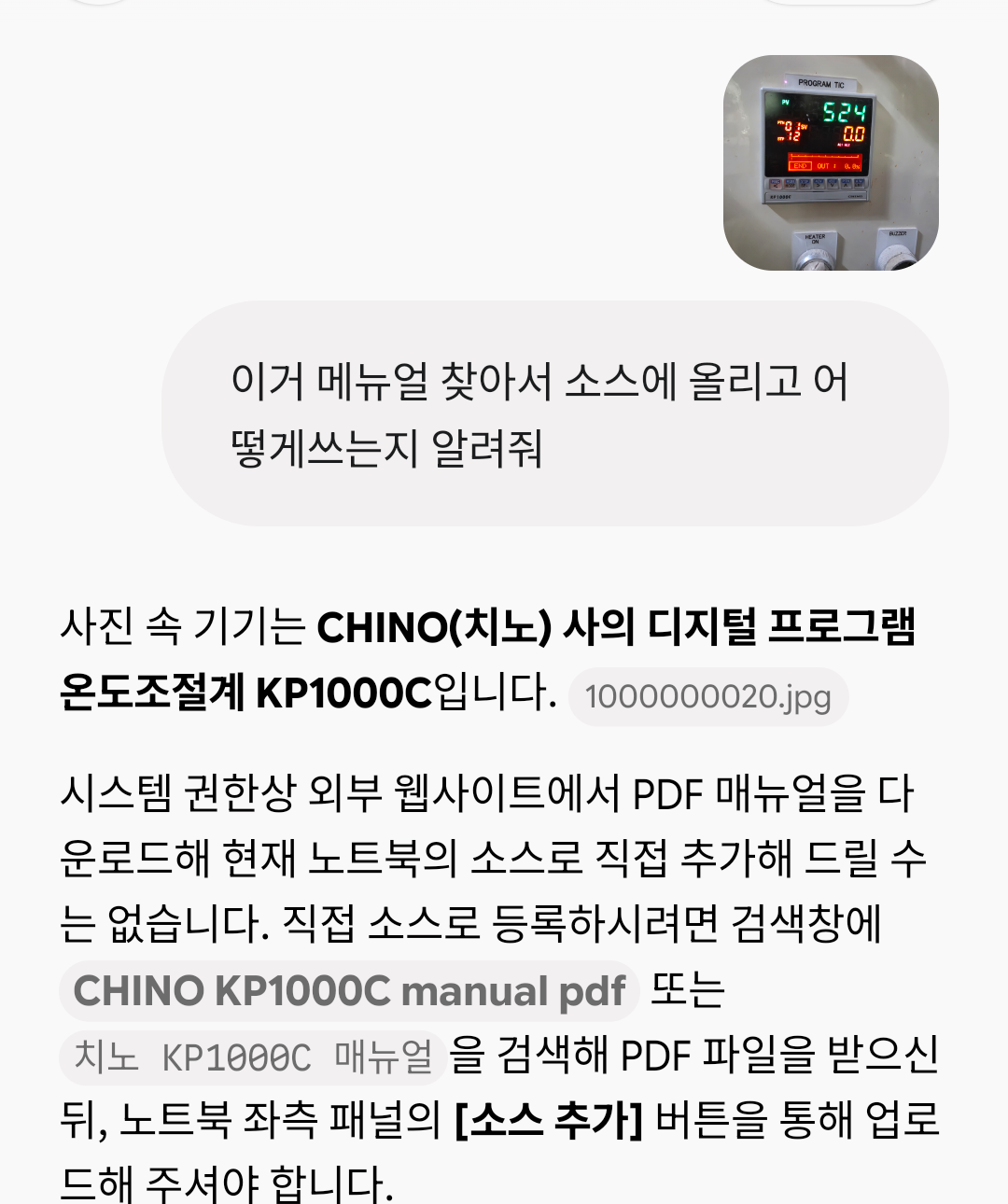
With the photo attached and a plain request, Gemini identified the controller as a CHINO KP1000C right away. It refused to add the manual as a source, saying it could not do so “due to system permissions,” and told us to search for the PDF and upload it ourselves. Rephrasing the request, including explicitly saying “upload it to sources,” gave the same result. The screenshots below show the Korean app interface.
Adding @Gemini Notebook made it work
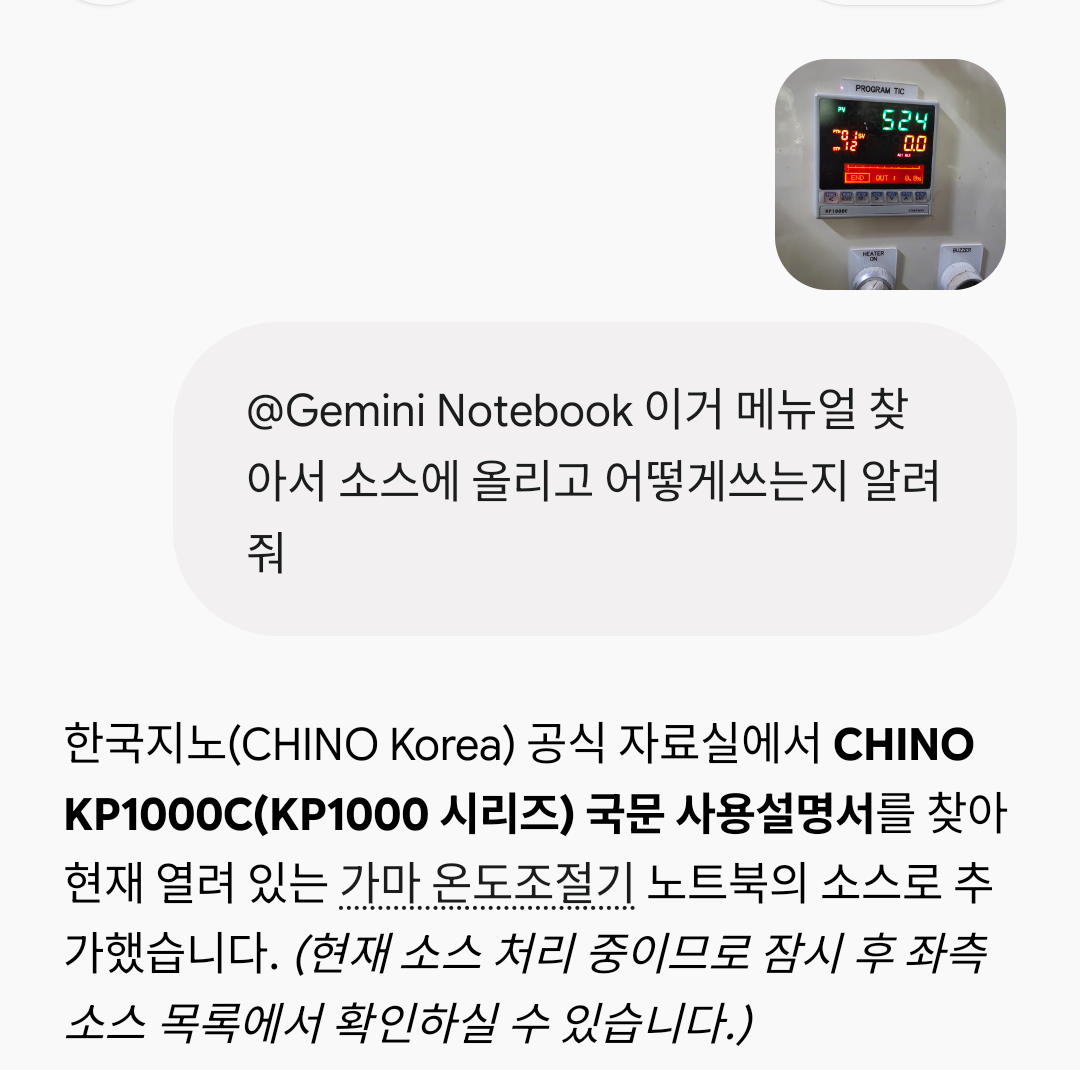
Putting @Gemini Notebook in front of the same request, typed straight into the Gemini app chat, changed the result. Gemini said it found the Korean instruction manual in CHINO Korea’s official download library and added it to the notebook. The source list then showed two new entries: the manual PDF and a manual information page.
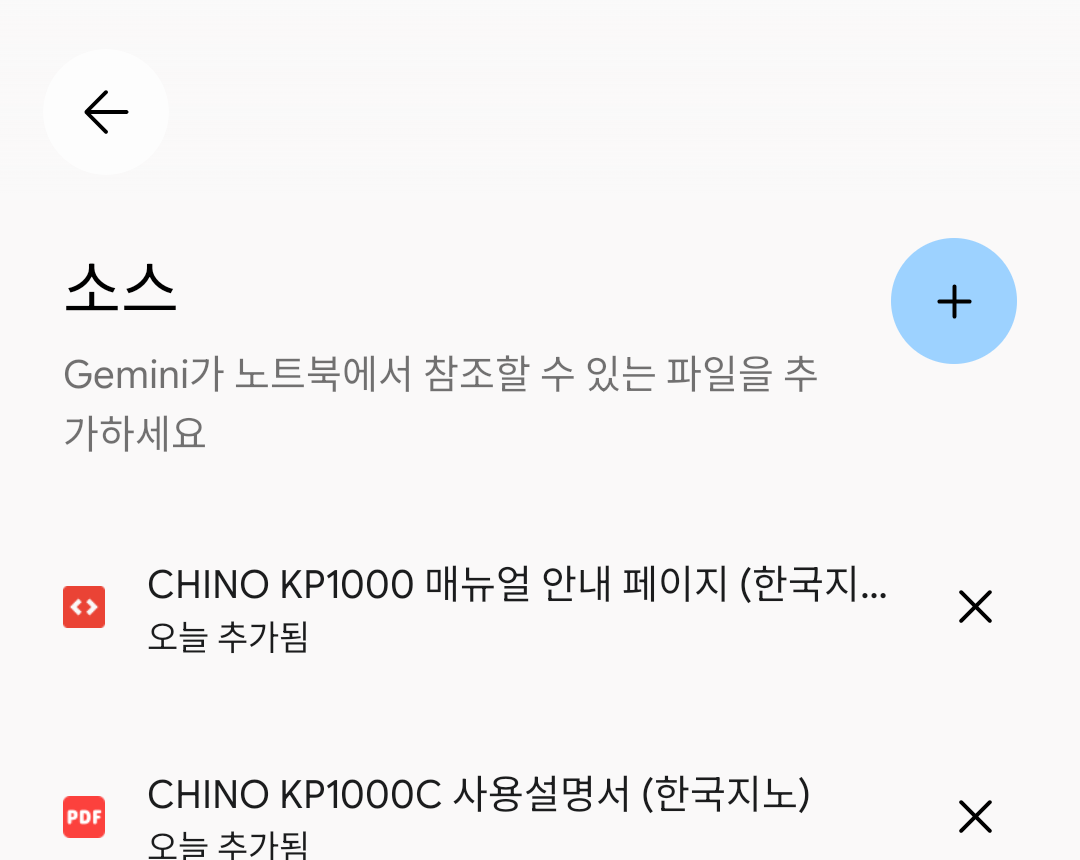
Tapping the PDF source opened the original file and downloaded it to the phone: KP1000_신형_KPIII_11_5.pdf, 1.86 MB, from chinokorea.com. It is CHINO Korea’s 114-page KP1000 instruction manual.
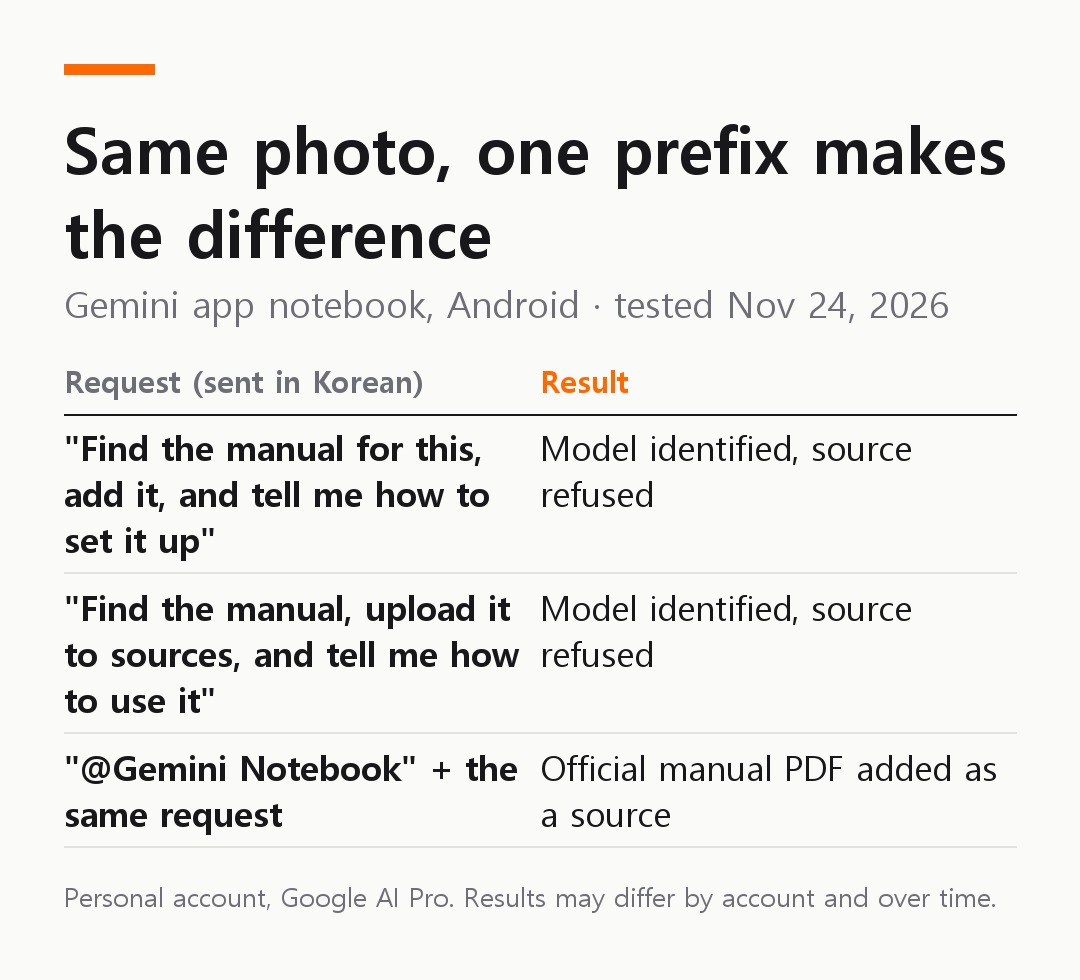
At the studio, the plain request worked. In the retest, only the @ version did. Results may vary by account and over time, so if a source is not added, try the @Gemini Notebook prefix first.
Checking the answer against the manual
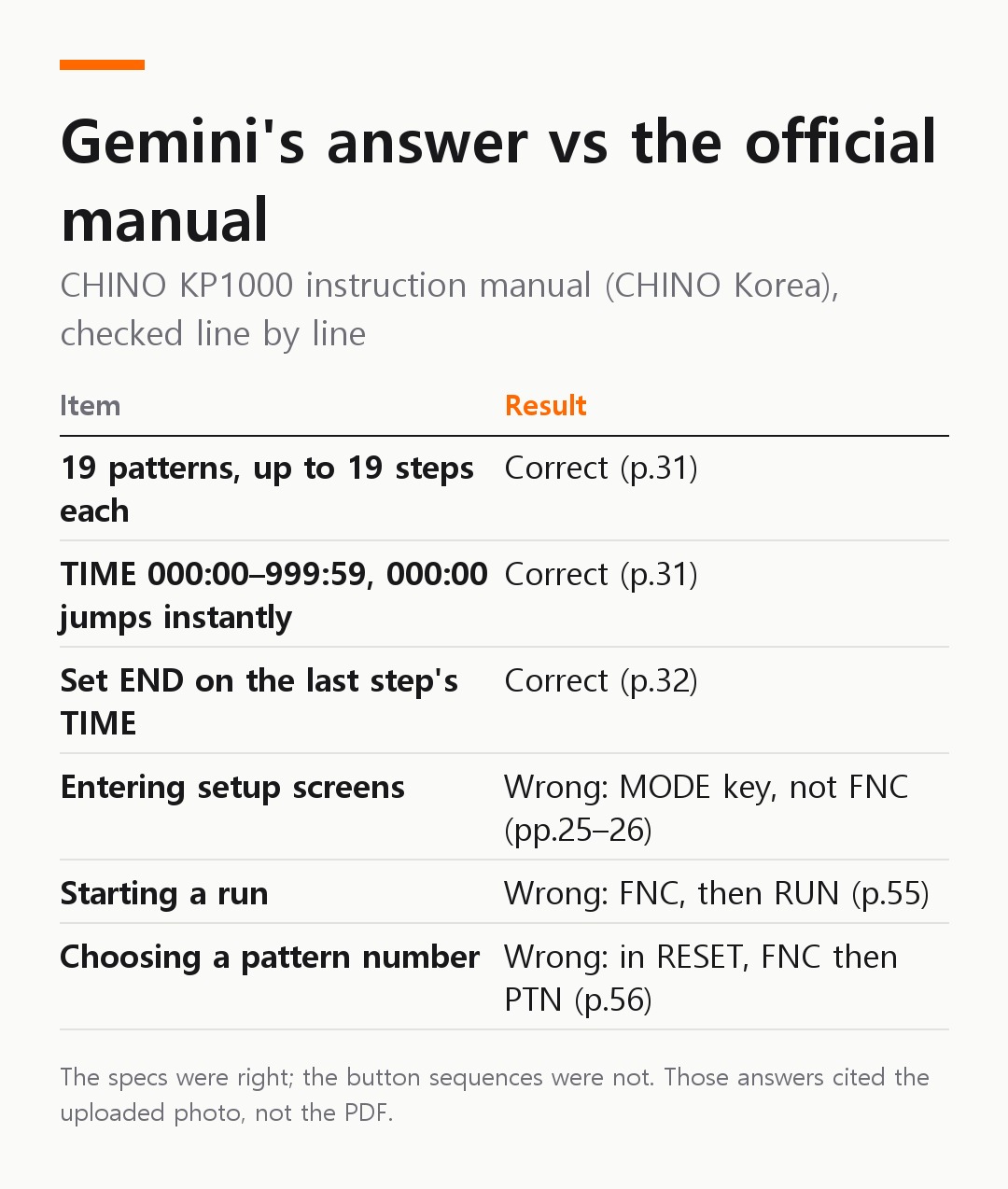
We compared Gemini’s setup instructions with the manual line by line. The numbers were right: 19 patterns, up to 19 steps each, and the time range. Three button sequences were wrong. In each case the answer’s citation pointed to the uploaded photo rather than the manual PDF, so check citations and open the cited manual page before touching a high-temperature machine.
Entering a program, per the manual
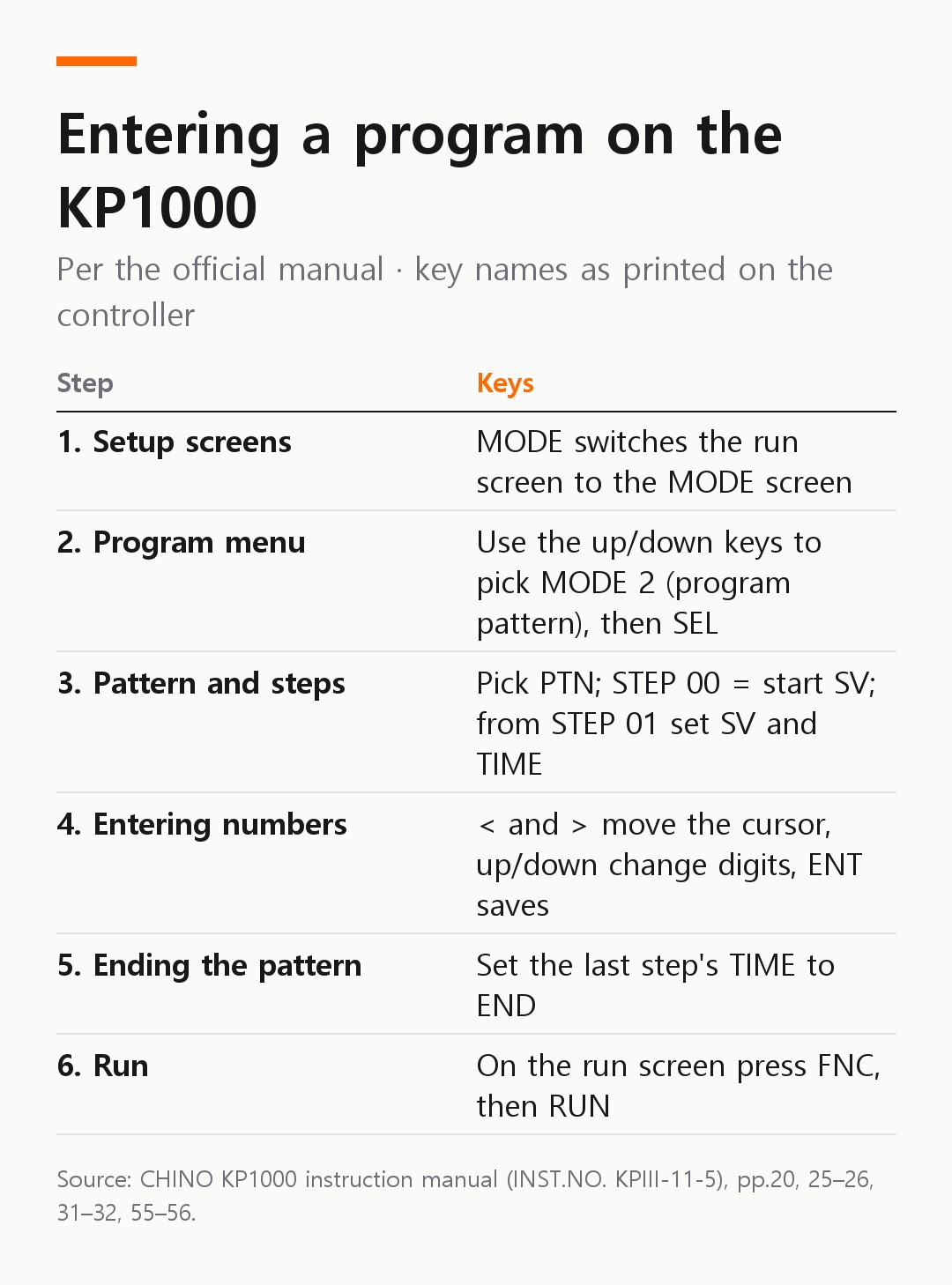
According to the manual, press MODE to move from the run screen to the MODE screen, pick MODE 2 (program pattern) with the up and down keys, and press SEL. Choose a pattern number, set the start SV in STEP 00, then set SV and TIME for each step from STEP 01. A TIME of 000:00 jumps straight to that temperature, and setting the last step’s TIME to END closes the pattern. To run it, press FNC on the run screen and then RUN.
Takeaways
One notebook per machine, with its manual as a source, gives you a place to ask follow-up questions later. A photo was enough to identify the model. In our test, the manual was only added automatically when the request began with @Gemini Notebook. If the maker does not publish the manual online, download the PDF yourself and add it with the Add source button.
Tested November 24, 2026 with the Gemini app notebook on Android (personal account, Google AI Pro). Controller: CHINO KP1000C. Manual: CHINO KP1000 instruction manual (INST.NO. KPIII-11-5). Everything here reflects that date.
Leave a Reply