This is part three of an old-laptop local LLM series with Ollama on Windows. In part two, ollama ps showed 100% CPU even though the laptop has an RTX 2070 with 8GB of VRAM, a current driver, and a model small enough to fit. This part shows how the cause was found with three commands, how it was fixed, and how much faster the same prompts ran afterwards. Measured on November 23, 2026, with Ollama 0.40.17.
Step 1: check what Ollama picked
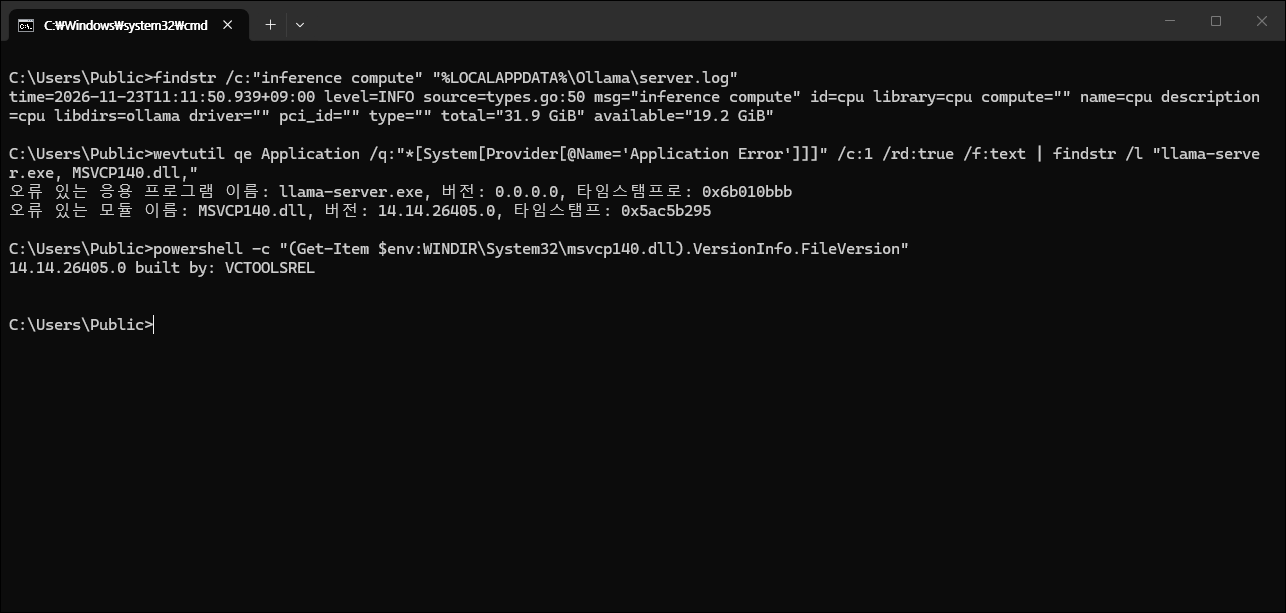
When the Ollama server starts, it looks for usable compute devices and logs the result. In Command Prompt:
findstr /c:"inference compute" "%LOCALAPPDATA%\Ollama\server.log"library=cpu means no GPU was found. After the fix, the same line reads library=CUDA with the GPU’s name.
Step 2: look for a crash in the Windows event log
wevtutil qe Application /q:"*[System[Provider[@Name='Application Error']]]" /c:1 /rd:true /f:text | findstr /l "llama-server.exe, MSVCP140.dll,"This prints the most recent application crash. Here it showed llama-server.exe (the process that actually runs the model inside Ollama) failing in MSVCP140.dll, part of the Microsoft Visual C++ runtime.
Step 3: check the runtime version
powershell -c "(Get-Item $env:WINDIR\System32\msvcp140.dll).VersionInfo.FileVersion"The system copy was 14.14, a 2018 build. Ollama ships its own copy at 14.44. Running only the GPU discovery step against the newer file detected the RTX 2070 and its 8GB normally; against the old file it crashed at the same point for every backend Ollama tries (CUDA 12, CUDA 13, Vulkan). The GPU and driver were fine; the old shared runtime stopped Ollama from seeing them, so it fell back to CPU.
The fix: install the current Visual C++ Redistributable
Microsoft’s latest supported Visual C++ Redistributable downloads page lists a permanent X64 link, https://aka.ms/vc14/vc_redist.x64.exe, recommended for apps built with Visual Studio 2017 through 2026. Run it, accept the license, and approve the administrator prompt. On this laptop the installer was 18.0MB, signed by Microsoft Corporation, version 14.52.37029.
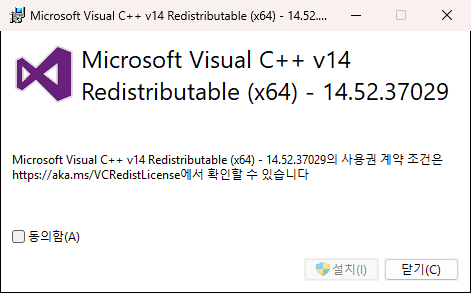
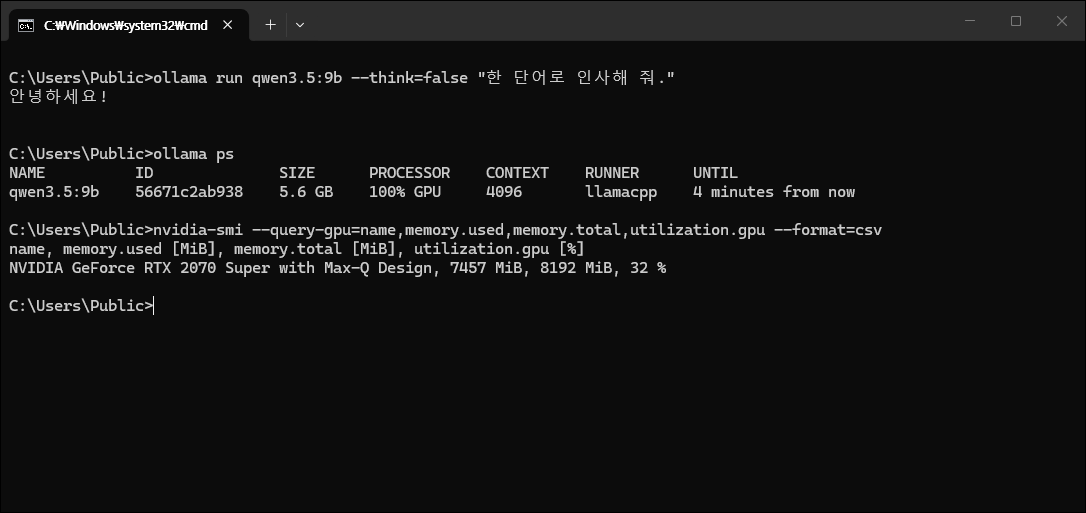
Then quit Ollama from the taskbar icon and start it again from the Start menu. No reboot was needed here. ollama ps now showed 100% GPU, and nvidia-smi reported 7,457MiB of VRAM in use instead of 1,266MiB.
CPU vs GPU on the same prompts
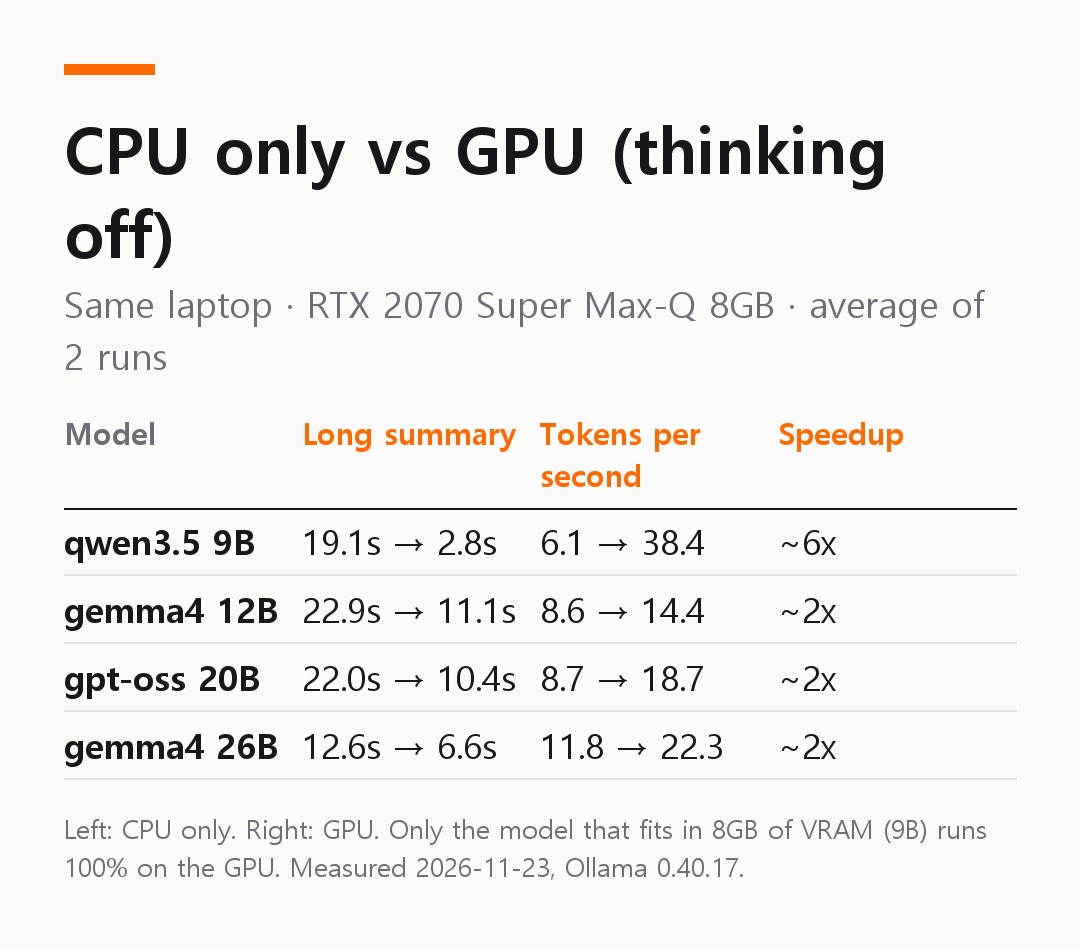
| Model | Long summary, thinking off | Long summary, thinking on | Tokens/s (thinking off) |
|---|---|---|---|
| qwen3.5:9b | 19.1s → 2.8s | 646s → 89s | 6.1 → 38.4 |
| gemma4:12b | 22.9s → 11.1s | 127s → 60s | 8.6 → 14.4 |
| gpt-oss:20b | 22.0s → 10.4s | 34s → 9s | 8.7 → 18.7 |
| gemma4:26b | 12.6s → 6.6s | 90s → 36s | 11.8 → 22.3 |
Only qwen3.5:9b fits entirely in 8GB of VRAM, and it was about six times faster. The larger models spill part of themselves into system RAM, where the CPU still does that share of the work, so they gained about 2x. With gemma4:26b loaded, ollama ps showed a 20%/80% CPU/GPU split and VRAM was nearly full at 7,596MiB. Its SIZE column read 1.6GB, while the process actually used over 19GB in an earlier measurement, so treat that column as an estimate for this model.
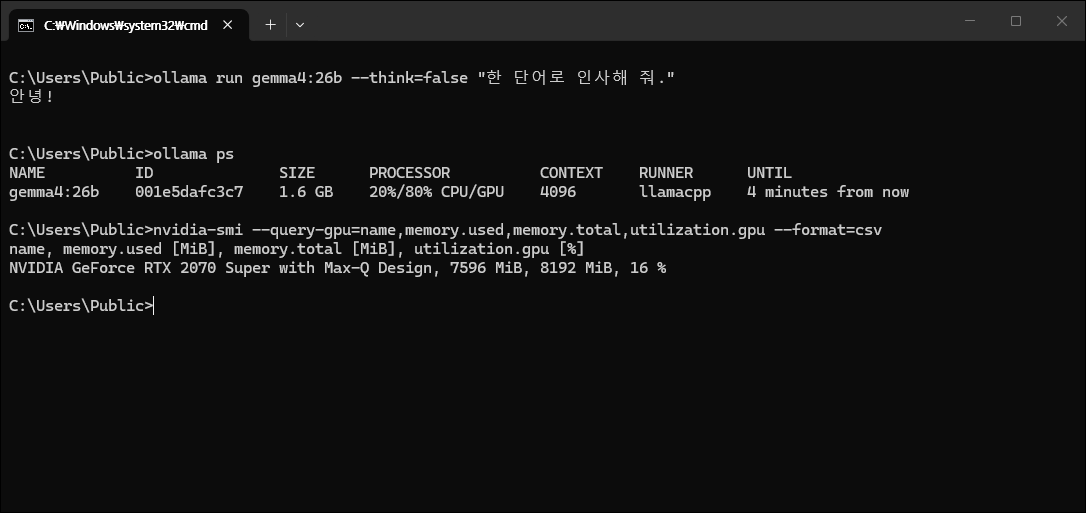
For an 8GB laptop GPU, a 9B model gives the biggest jump; larger models still run, just with a smaller gain. The next part looks at how these models do on six everyday tasks, on CPU and GPU.
Leave a Reply